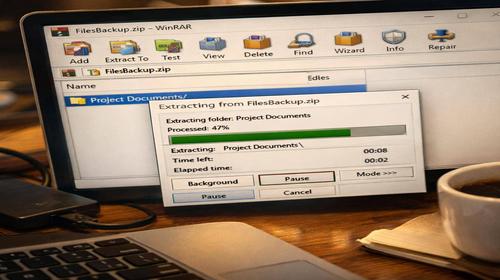
How to extract a specific folder from a WinRAR archive without full extraction
Short description: Learn how to quickly extract a specific folder from a WinRAR archive without unpacking everything. Simple solution in 1 minute.
When you need this
- The archive contains many files but you only need one folder
- You don’t want to waste disk space on unnecessary data
- The archive is large and takes time to extract
- You need quick access to specific files
- You want to work with the archive selectively
Fastest method (1 minute)
- Right-click the archive
- Select “Open with WinRAR”
- Find the required folder
- Drag it to the desktop
- The folder will be extracted instantly
Main methods
There are three main methods: using the WinRAR interface, drag & drop, and the Windows context menu. The fastest is drag & drop, while the most controlled is using the “Extract” button.
Method 1 — using WinRAR (main)
- Open the archive with a double click
- Find the required folder in the list
- Select it with the mouse
- Click the “Extract” button
- Choose a destination folder and press OK
Method 2 — drag and drop (fast)
- Open the archive in WinRAR
- Click and hold the required folder
- Drag it to the desired location
- Release the mouse — extraction starts automatically
Method 3 — context menu (tip)
- Right-click the archive
- Select “Extract files…”
- In the window select only the needed folder
- Confirm extraction
Useful tips
- Use drag & drop for maximum speed
- Avoid extracting the whole archive if not needed
- Check folder size before extraction
- Use a temporary folder for sorting files
- Use keyboard shortcuts to speed up work
Common mistakes
Users often extract the entire archive instead of one folder. Many also forget about drag & drop. Another issue is extracting to the wrong directory, making files hard to find.
Frequently asked questions
Can I extract a single file?
Yes, the process is the same — just select a file instead of a folder.
Do I need to install WinRAR?
Yes, or any other archive tool.
Does it work on Windows 10 and 11?
Yes, without limitations.
Can I do this without opening the archive?
No, you need to view the archive contents first.
What if the archive is password protected?
You need to enter the password before extraction.
Conclusion
The most convenient method is dragging the folder with the mouse, while the most универсальный method is using the “Extract” button. Choose based on your needs.
Read also
Bookmarks
If this article was useful, add our blog
about Windows programs
to your bookmarks.
Press Ctrl + D