How to Filter Empty Cells in Make.com and Run Scenarios Only with Data
Short description: in this article, you will learn how to properly handle empty cells from Google Sheets in Make.com, why standard checks often fail, and how the Exists operator helps you run scenarios only when data is actually present.
Why This Problem Occurs
In Google Sheets, an empty cell looks like just a blank space. However, when you retrieve it in Make.com using modules like Google Sheets > Get a cell or Search rows, the value can be returned in different ways.
An empty cell may appear as:
- an empty string
""; - a
nullvalue; - a missing field (Make doesn’t include the key at all).
Because of this, standard checks like length(1. Value) > 0 or comparing with "" don’t always work correctly. Sometimes Make treats the value as existing, and other times it considers the field missing entirely.
As a result, your scenario may behave unpredictably: empty values pass through the filter, or valid data gets blocked.
How the Exists Operator Works in Make.com
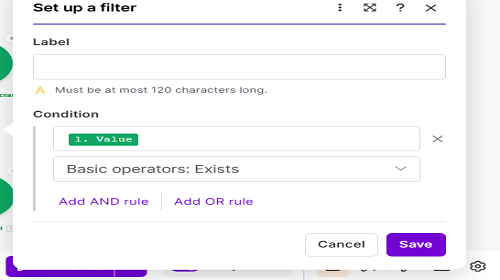
The Basic operators: Exists operator is designed specifically for this situation. It doesn’t check length or compare strings. Instead, it answers a simple question:
“Does this field exist in the data bundle and is it not null?”
Here’s how it works:
- If the cell is empty → value is
nullor missing → filter returns false → scenario stops. - If the cell contains text → field exists → filter returns true → scenario continues.
In simple terms, Exists means: “process only if data is actually present”.
How to Set Up a Filter for Non-Empty Values
To ensure your Make.com scenario only runs when a value exists in Google Sheets, follow these steps:
- Add a data module. Use Google Sheets > Get a cell or Search rows.
- Add a filter. Click the connection line between modules and insert a filter.
- Select the field. Choose the value field (e.g.,
1. Value). - Select the operator. Choose Basic operators → Exists.
- Leave the right field empty.
- Save the filter.
After this setup, your scenario will only process rows where the field actually contains data.
Why Exists Is Better Than Length Checks
Many users try approaches like:
length(1. Value) != 01. Value != ""length(ifempty(1. Value; "")) > 0
The problem is that these methods depend on how the data is returned:
- If it’s an empty string → it works;
- If it’s
null→ it may break; - If the field doesn’t exist → results become unreliable.
The Exists operator avoids all these issues by simply checking whether the field is present. This makes your automation more stable and predictable.
Where Else You Can Use Exists
This approach is universal and works in many automation scenarios:
- Don’t send emails if the address field is empty;
- Don’t create CRM tasks without a name or phone number;
- Don’t publish posts without content;
- Don’t trigger workflows without required inputs;
- Don’t send incomplete data to external services.
The logic is always the same:
- Select a critical field;
- Apply the Exists operator;
- Filter out all incomplete data automatically.
How to Test Your Filter
After setting up the filter, it’s important to test it:
- Run the scenario using Run once;
- Open the execution details;
- Go to Filter inspector;
- Check which bundles passed and which were blocked.
This helps ensure your filter behaves exactly as expected and allows you to quickly detect issues such as incorrect ranges, shifted columns, or unexpected values.
Conclusion
The Exists operator in Make.com is the most reliable way to check whether a field contains data. It handles empty strings, null values, and missing fields without additional logic.
If you want your scenario to run only when real data is present, using Basic operators: Exists is the best solution. It simplifies your logic, improves stability, and prevents unnecessary executions.