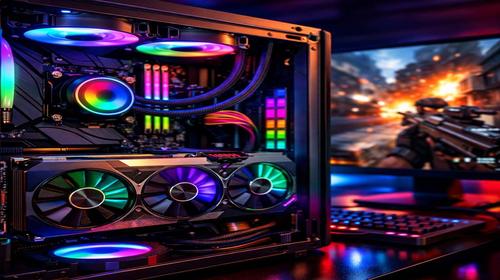
How to Increase FPS in Games on PC: Best Upgrade Guide for Maximum Performance
Short description: Learn how to increase FPS in games by upgrading your PC components. Step by step guide to improve performance with GPU, CPU, RAM and SSD.
If your computer struggles during gaming, games lag, or FPS drops constantly, it is a clear sign that your system needs an upgrade. Many users think they must buy a completely new PC to enjoy modern games, but in reality, upgrading key components can significantly boost performance. Increasing FPS in games depends mainly on hardware, and even small improvements can make gameplay much smoother and more enjoyable.
This guide explains how to increase FPS in games on PC using practical upgrade methods. You will learn which components affect performance the most, how to choose the right upgrades, and how to install them correctly. Whether you use a desktop computer or a laptop, these steps will help you improve your gaming experience without unnecessary expenses.
What causes low FPS in games
Low FPS in games usually happens when your computer hardware cannot handle the game requirements. The most important components that affect performance are the graphics card, processor, RAM, and storage drive. If one of these parts is too weak or outdated, the system cannot process game data efficiently. As a result, you experience stuttering, delays, and unstable performance. Understanding the cause is the first step toward improving FPS.
What affects FPS in games
- Graphics card GPU processes all visual data and has the biggest impact on FPS
- Processor CPU handles game logic and calculations
- RAM memory stores temporary game data for fast access
- SSD storage improves loading speed and reduces delays
- Power supply ensures stable operation of all components
- Cooling system prevents overheating and performance drops
Main causes or upgrade opportunities
- Outdated GPU that cannot handle modern graphics
- Weak CPU limiting overall system performance
- Insufficient RAM causing system slowdowns
- Using HDD instead of SSD for games
- Overheating components reducing performance
Step by step upgrade guide
- Identify your needs and budget before upgrading
- Check your current PC specifications and compatibility
- Choose components that match your motherboard and system
- Purchase required parts and prepare tools
- Install components and update drivers and system
Useful tips
- Upgrade GPU first for the biggest FPS improvement
- Use at least 16 GB of RAM for modern gaming
- Install games on SSD for faster performance
- Keep drivers and Windows updated
- Clean your PC from dust to avoid overheating
Common mistakes
One of the most common mistakes is upgrading only one component, such as the GPU, while ignoring CPU limitations. Another issue is using a weak power supply that cannot support new hardware. Users also often forget to update drivers after installing new components, which reduces performance. Installing incompatible RAM or ignoring cooling can also cause problems. Avoid these mistakes to get the best results from your upgrade.
FAQ
Does upgrading GPU increase FPS?
Yes, upgrading the graphics card provides the biggest improvement in gaming performance.
How much RAM is needed for gaming?
At least 16 GB is recommended for modern games.
Is SSD important for FPS?
SSD does not directly increase FPS but improves loading times and reduces stuttering.
Can I upgrade my PC myself?
Yes, most components can be installed easily if you follow instructions carefully.
Conclusion
How to increase FPS in games on PC depends on upgrading the right components. The most effective improvements come from upgrading GPU, CPU, RAM, and switching to SSD. With proper upgrades, you can significantly improve performance without buying a new computer. Follow this guide to achieve stable FPS and better gaming experience.
Read also
More useful tips can be found in the
Upgrade,
Video card,
Ram,
Power supply and
Hard disk drive sections.
Bookmark this page and improve readability
To quickly return to this article, add it to your bookmarks using the keyboard shortcut Ctrl + D on Windows or Cmd + D on Mac. This helps you access the guide anytime.
If the text appears too small, you can increase its size by up to 30 percent using Ctrl and + to zoom in or Ctrl and – to zoom out for better readability.