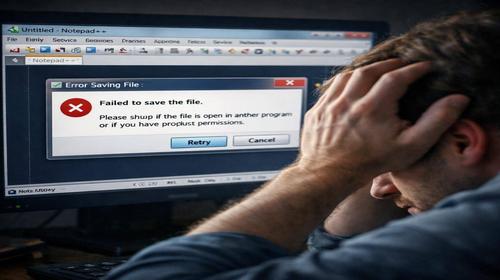
Notepad++ Not Opening Files: Complete Fix Guide
Short description: Notepad++ won’t open files? Learn how to fix common Notepad++ issues and errors on Windows 10/11. Step-by-step guide with CMD commands, registry fixes, and configuration tweaks for stable performance. :contentReference[oaicite:0]{index=0}
When This Problem Occurs
- After restarting your computer, Notepad++ fails to reopen previously opened files.
- Drag-and-drop doesn’t work due to permission differences between apps.
- Files only open after moving them to Desktop or selecting them manually.
- File associations are broken after updates or reinstalling Notepad++.
- The editor shows a blank screen or fails to display text due to rendering issues.
Step-by-Step Guide
- Run Notepad++ as administrator. Right-click the Notepad++ shortcut on Desktop or Start Menu and select Run as administrator. Try opening a file via File → Open. If it works, the issue is related to permissions. To make it permanent: right-click the shortcut → Properties → Compatibility → enable Run this program as administrator. This also fixes drag-and-drop problems caused by permission conflicts.
- Reset file associations in Notepad++. Launch Notepad++ as administrator. Go to Settings → Preferences → File Association. Uncheck all assigned file types (.txt, .log, etc.). Close settings. Then, in File Explorer, right-click a file → Open with → Choose another app. Select notepad++.exe (usually located in C:\Program Files\Notepad++\notepad++.exe), enable Always use this app, and confirm. This restores proper file opening behavior.
- Fix Windows registry entries. Press Win + R, type regedit, and press Enter. Use Ctrl + F to search for notepad++.exe. Check each result and update incorrect paths (for example, from Program Files (x86) to Program Files). Press F3 to continue searching. Close Registry Editor and restart your PC. You can verify the correct path in CMD using: where notepad++. This is especially important after switching from 32-bit to 64-bit versions.
- Change rendering mode if the screen is blank. In Notepad++, go to Settings → Preferences → MISC. Set Rendering Mode to GDI (most compatible) instead of DirectWrite. Restart the editor. If the issue persists, download the portable version and run it without installation. You can also reset all settings by deleting the folder: %APPDATA%\Notepad++.
- Perform a clean reinstall. Open Settings → Apps, uninstall Notepad++. Remove leftover folders:
C:\Program Files\Notepad++
%APPDATA%\Notepad++
%LOCALAPPDATA%\Notepad++
Run CMD as administrator and execute sfc /scannow to check system files. Download the latest 64-bit version and reinstall. Test by opening a .txt file — if it works, the issue is resolved.
Helpful Tips
- Use the portable version of Notepad++ for testing — it doesn’t affect system settings.
- Enable session restore via Settings → Preferences → Backup → Remember current session.
- Check updates manually instead of auto-updating after major system changes.
- Create an admin shortcut for faster access and fewer permission issues.
- For large files (>100MB), install the “Large File Controller” plugin.
Common Notepad++ Errors
Problems often occur due to conflicts between 32-bit and 64-bit versions, where registry paths point to outdated directories. Another common issue is Windows updates resetting file associations. Use SFC /scannow and DISM /Online /Cleanup-Image /RestoreHealth to repair system files. Blank screen errors are usually caused by DirectWrite incompatibility with GPU drivers — switching to GDI fixes this. Drag-and-drop issues occur when running the app with elevated privileges. Always fully remove old versions to prevent conflicts.
FAQ
Does this work on all Windows versions?
Yes, this guide works on Windows 7, 8, 10, and 11. On older systems, check compatibility settings.
Will Notepad++ affect system performance?
No, Notepad++ is lightweight and uses minimal resources. Switching to GDI may even improve performance on older PCs.
Does this work on laptops?
Yes, especially useful on systems with BitLocker or stricter permissions.
Do I need to restart my PC?
Yes, after registry changes. For settings changes, restarting the app is usually enough.
Should I remove the old version before installing?
Yes, always remove previous versions and leftover files to avoid conflicts.
Can Windows updates cause this issue?
Yes, updates may reset file associations or break compatibility.
How to verify the fix?
Create a .txt file and double-click it — it should open in Notepad++. Also test drag-and-drop and session restore.
Can I use older versions?
Not recommended, as older versions may have bugs or security issues.
What if the problem comes back?
Run DISM repair commands, reinstall Notepad++, and check system updates.
Conclusion
Fixing Notepad++ issues ensures stable performance for editing code, logs, and configuration files. By checking permissions, repairing file associations, fixing registry paths, and adjusting rendering settings, you can restore full functionality. Regular maintenance and updates will help avoid future problems.