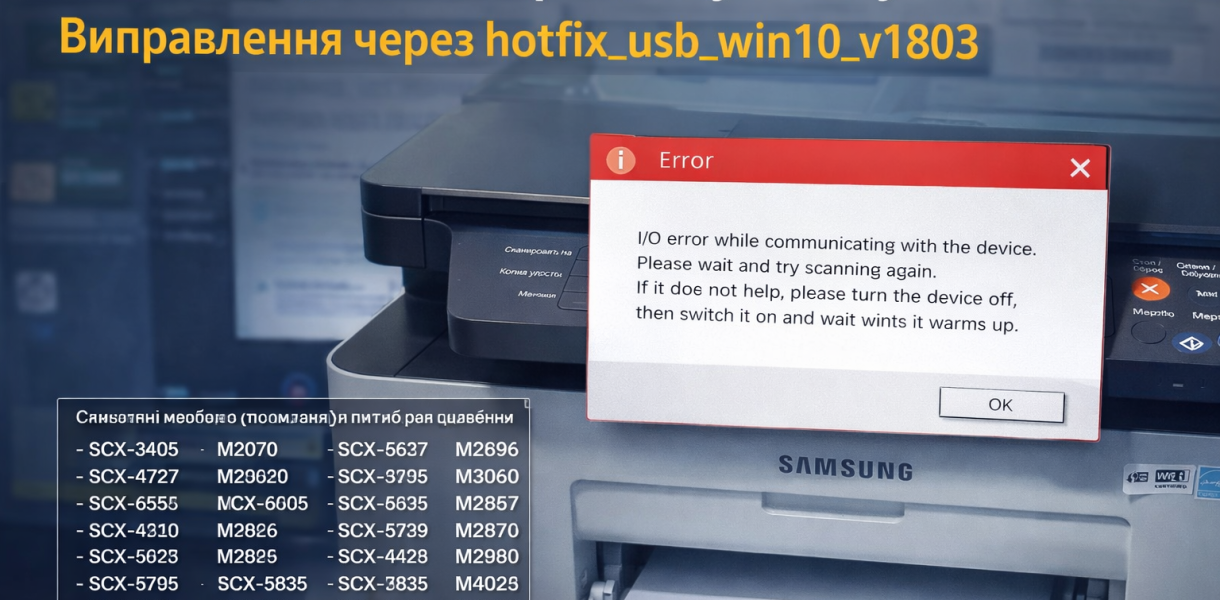
I O Error While Scanning in Windows 10 and How to Fix It Using hotfix_usb_win10_v1803
Short description: Detailed guide on how to fix the I O error while scanning in Windows 10 for Samsung printers using hotfix and proper system configuration.
When this problem occurs
- After updating Windows 10 to a newer version
- The scanner is detected but does not work
- I O error appears during scanning
- The printer works but the scanner does not
- Old Samsung drivers are installed
Step-by-step guide
- Step 1 – Remove old driversBefore applying hotfix_usb_win10_v1803, it is important to completely clean your Windows system from old drivers. Open Control Panel and go to Devices and Printers, then remove your Samsung printer. After that, open Device Manager and locate the scanner in the list. Right-click and choose Remove device with the option to delete driver files. This step is critical because outdated drivers can conflict with new Windows system updates and prevent the scanner from working properly.
- Step 2 – Restart your systemAfter removing the drivers, restart your computer. This allows Windows to clear driver cache and prepare for new installations. Without this step, leftover files may continue causing errors in scanning software. Restarting also refreshes system services, including Windows Image Acquisition, which is responsible for scanner functionality.
- Step 3 – Install hotfix_usb_win10_v1803Download the hotfix_usb_win10_v1803.zip file from a trusted source. In most cases, you need to register on the website to access the download. Extract the archive and run the installer file. This patch fixes USB communication issues between Windows and the scanner. It is especially effective for Samsung devices that lost compatibility after Windows updates. Make sure no other applications are running during installation to avoid conflicts.
- Step 4 – Install the correct driverAfter applying the hotfix, install the proper scanner driver. It is recommended to use the official driver or a universal scan driver. Do not rely on automatically installed Windows drivers, as they often lack full scanning support. Install the driver manually following the setup instructions. Once completed, connect the printer directly via USB without using hubs.
- Step 5 – Test the scannerAfter completing all steps, open Windows Fax and Scan or any scanning application and perform a test scan. If everything is configured correctly, the I O error should no longer appear. The scanner should work normally without freezes or image corruption. This confirms that the USB communication and driver issues are resolved.
Useful tips
- Always use an original USB cable
- Avoid connecting the printer through USB hubs
- Keep drivers up to date
- Check Windows Image Acquisition service status
- Use alternative scanning software if needed
Common software mistakes
Many Windows users make typical mistakes when configuring scanner software. The most common issue is using default Windows drivers instead of official ones, which leads to partial device functionality. Another mistake is not fully removing old drivers, resulting in conflicts. Users often ignore the Windows Image Acquisition service, which must be running for scanning to work. Skipping system restart after changes is another frequent issue. Additionally, faulty or low-quality USB cables can cause unstable communication between the scanner and the computer.
Frequently asked questions:
Does this work on other Windows versions?
Yes, this method can work on Windows 7 and Windows 10, but it is especially effective for Windows 10 after major updates.
Will this affect computer performance?
No, the hotfix does not impact performance. It only fixes device communication issues.
Does this work on laptops?
Yes, the solution works on both laptops and desktop computers.
Is a restart required after changes?
Yes, restarting is necessary to apply system changes properly.
Do I need to remove the old version before installing?
Yes, removing previous drivers is essential to avoid conflicts.
Can Windows updates cause this problem?
Yes, Windows updates are often the main cause of scanner issues.
How to check if the issue is fixed?
Run a test scan without errors to confirm the fix.
Can I use older versions of the software?
You can, but they may not be stable after Windows updates.
What to do if the issue appears again?
Repeat the process or check drivers and USB connection again.
Conclusion
The I O error while scanning in Windows 10 is a common issue for Samsung printers. The main cause is driver incompatibility after system updates. Using hotfix_usb_win10_v1803 along with proper driver installation fully restores scanner functionality. Following this guide and configuring your Windows system correctly will help you avoid similar problems in the future and ensure stable scanner operation.