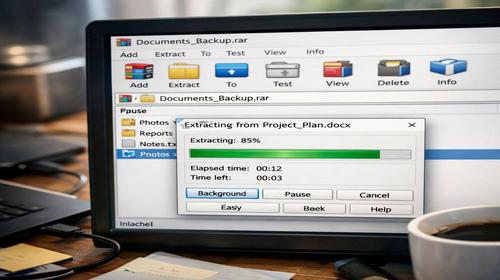
How to Extract a File from a WinRAR Archive
Short description: Learn how to extract a file from a WinRAR archive, unpack RAR files, or extract only specific files without full extraction. Practical methods for Windows.
When this problem occurs
- RAR file does not open without a proper program.
- You need to extract only one file from a large archive.
- The archive is password protected.
- Errors appear during extraction.
- There is not enough disk space for full extraction.
Step-by-step instructions
- Install WinRAR. Download the latest version and install it. During setup, enable support for RAR and ZIP formats.
- Open the archive. Double-click the file or right-click → Open with WinRAR. You will see the file list.
- Select the file. Choose the required file or multiple files using Ctrl. Click “Extract”.
- Choose destination. Select a folder or use “Extract Here”. If the archive has a password, enter it.
- Check the result. Open the extracted file and make sure it works properly.
Useful tips
- Keep WinRAR updated to avoid errors.
- Use an SSD drive for faster extraction.
- Test archive integrity before extraction.
- If the archive is damaged, use the repair feature.
- You can use 7-Zip as a free alternative.
Common errors
The “Cannot open file” error means the archive is damaged or incomplete. The “Wrong password” message indicates an incorrect password — check keyboard layout and Caps Lock. If extraction fails, run WinRAR as administrator. For multi-part archives, ensure all parts are in the same folder. If the process freezes, close other programs or change priority settings.
Frequently asked questions
Does this work on all Windows versions?
Yes, it works on Windows 7, 8, 10, and 11.
Do I need to restart my computer?
No, just restart the program or File Explorer.
Can I extract only one file without full extraction?
Yes, simply select it and click “Extract”.
What should I do if the archive does not open?
Try repairing it or reinstalling WinRAR.
Does WinRAR affect system performance?
Minimally. It runs smoothly even on low-end PCs.
Conclusion
To extract a file from a WinRAR archive, the best method is using the built-in extraction tool. If you need to save space, use selective extraction. In case of errors, always check the archive and keep your software updated.
Read also
Bookmarks
If this article was helpful, add our blog about computers to your bookmarks.
Press Ctrl + D