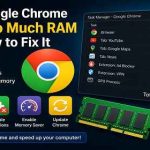
Why Google Chrome Uses So Much RAM and How to Fix It
Short description: Is Google Chrome consuming too much RAM, slowing down your PC, or freezing when multiple tabs are open? Here are the most effective ways to reduce memory usage and speed up the browser.
When You Need This Fix
- Chrome becomes slow after several hours of use
- Your computer freezes when many tabs are opened
- RAM usage constantly stays near 100%
- Windows starts heavily using the page file
- Your laptop fans run at maximum speed while browsing
Fastest Method (1 Minute)
- Open Google Chrome
- Press Shift + Esc to open Chrome Task Manager
- Sort processes by memory usage
- Close tabs or extensions using the most RAM
- Enable “Memory Saver” in Chrome settings
In many cases, this immediately lowers RAM usage and makes Chrome noticeably faster.
Main Ways to Reduce Chrome Memory Usage
Chrome may consume a large amount of RAM for different reasons: too many tabs, heavy extensions, hardware acceleration, or Windows-related issues.
That is why combining several optimization methods usually gives the best result.
Method 1 — Disable Unnecessary Extensions
- Type chrome://extensions into the address bar
- Review all installed extensions
- Disable unused VPNs, ad blockers, AI tools, and other plugins
- Restart the browser
Many extensions continue running in the background and constantly consume memory.
Suspicious extensions may also affect browser security and system performance. You may also find these guides useful: Internet Security and Browsers.
Method 2 — Enable Memory Saver
- Open Chrome Settings
- Go to the “Performance” section
- Enable the “Memory Saver” option
- Restart Chrome
Chrome will automatically put inactive tabs into sleep mode to free up RAM.
This feature is especially useful on laptops with limited memory.
Method 3 — Disable Hardware Acceleration
- Open Chrome Settings
- Go to the “System” section
- Disable “Use hardware acceleration when available”
- Restart the browser
On some systems, hardware acceleration causes memory leaks or GPU driver conflicts.
If you suspect graphics-related issues, check the article about Video Cards.
Method 4 — Clear Cache and Create a New Chrome Profile
- Press Ctrl + Shift + Delete
- Clear cache and cookies
- Close Chrome completely
- Create a new browser profile
A corrupted Chrome profile can cause excessive RAM usage even with only a few tabs open.
Method 5 — Hidden Chrome Optimization Trick
- Open chrome://flags
- Search for Automatic tab discarding
- Enable this feature
- Restart Chrome
Chrome will automatically unload inactive tabs from memory without fully closing them.
This is one of the best optimization tricks for older PCs and laptops with 4–8 GB RAM.
Useful Tips
- Avoid keeping dozens of tabs open at the same time
- Update Chrome regularly
- Install only trusted extensions
- Reduce unnecessary Windows background processes
- Consider upgrading your RAM if your system has limited memory
Common Mistakes
One of the biggest mistakes is installing too many browser extensions while also keeping YouTube, Google Docs, social media, and messengers open simultaneously.
Another common issue is outdated GPU drivers or old Windows builds.
Frequently Asked Questions
Why does Chrome use more RAM than other browsers?
Chrome uses separate processes for tabs and extensions, improving stability and security but increasing memory usage.
How much RAM does Chrome normally use?
With 10–20 tabs open, Chrome can easily use 2–4 GB of RAM.
Will reinstalling Chrome help?
Yes, especially if the browser profile is damaged.
Should I disable hardware acceleration?
Yes, if Chrome freezes, crashes, or heavily loads the GPU.
Which method works best?
Disabling unnecessary extensions and enabling Memory Saver usually gives the biggest improvement.
Conclusion
If Google Chrome uses too much RAM, the issue is usually caused by extensions, excessive tabs, or incorrect browser settings.
For quick results, disable unnecessary extensions, enable Memory Saver, and clear the browser cache.
If the problem still exists, optimize your computer and check your system drivers.
Read Also
Bookmarks
If this article was useful, bookmark our blog about
browsers and Windows optimization.
Press Ctrl + D