How to Detect a Phishing Email: Real Example Analysis and Account Protection
Short description: We analyze a real phishing email using a suspicious onmicrosoft.com domain, SPF fail errors, and a malicious PDF attachment. Learn how to quickly identify dangerous emails and protect your accounts.
Modern phishing emails look more realistic than ever. Many users receive what appears to be an “official” email, open the attached PDF or click a link — and within minutes lose access to their email, banking, or work accounts.
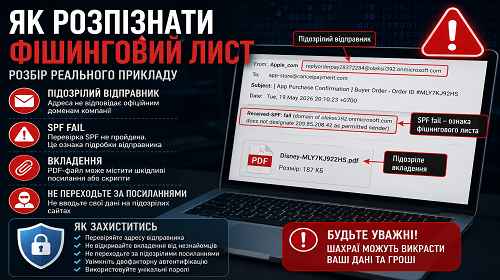
In this real example, attackers sent a message from replyorderpay28372284@oleksii392.onmicrosoft.com. The email included a PDF attachment and SPF authentication failures. These details are often the first signs of a phishing attack.
When This Matters
- You received a strange email with an attachment
- The sender uses a suspicious domain
- The message urges you to open a file immediately
- You suspect a password theft attempt
- You need to determine whether the email is fake or legitimate
Fastest Way to Check (1 Minute)
- Check the full sender address, not just the display name
- Hover over links without clicking them
- Never open PDF or ZIP files from unknown senders
- Review SPF/DKIM/DMARC headers if possible
- If you see SPF fail or a suspicious domain — delete the email
What Exposed the Phishing Email
The message used the following address:
replyorderpay28372284@oleksii392.onmicrosoft.com
The address itself already looks suspicious:
- random numbers in the username;
- unknown domain name;
- usage of onmicrosoft.com;
- no connection to a real company.
Additionally, the email headers contained this error:
Received-SPF: fail
This means the sender failed SPF authentication. In many cases, SPF fail is a strong indicator of spoofed or malicious emails. :contentReference[oaicite:0]{index=0}
Why PDF Attachments Are Dangerous
The email contained this file:
Disney-MLY7KJ922HS.pdf :contentReference[oaicite:1]{index=1}
Today, attackers frequently use PDF files for:
- fake invoices;
- delivery notifications;
- fake Microsoft or Google documents;
- hidden malicious links;
- redirects to phishing websites.
Many users incorrectly believe PDF files are always safe. In reality, PDFs may contain:
- buttons linking to malicious websites;
- embedded JavaScript;
- fake login forms;
- download links for malware.
Main Signs of a Phishing Email
Most phishing emails follow similar patterns.
Method 1 — Verify the Sender Address
- Open the full email details
- Check the domain after the @ symbol
- Make sure the domain belongs to a real company
- Look for random numbers or strange wording
- If the domain looks suspicious — do not open the email
Examples:
- support-google-security.com — fake domain
- paypal-confirm2026.net — phishing domain
- oleksii392.onmicrosoft.com — suspicious technical domain
Method 2 — Analyze SPF, DKIM, and DMARC
- Open the email headers
- Find SPF, DKIM, and DMARC results
- Look for fail, none, or neutral statuses
- If SPF shows fail — treat the email as suspicious
The analyzed message included:
Received-SPF: fail :contentReference[oaicite:2]{index=2}
It also used an unusual DKIM domain:
oleksii392-onmicrosoft-com.20251104.gappssmtp.com :contentReference[oaicite:3]{index=3}
Regular users may ignore this, but for an administrator it is already a serious warning sign.
Method 3 — Safely Check Attachments
- Do not open the PDF directly
- Upload the file to VirusTotal first
- Check the digital signature
- Open files only in an isolated environment
- Never enter passwords after opening an attachment
Hidden trick: if the email claims to be from Microsoft, a bank, or a delivery company — avoid opening the attachment entirely. Instead, manually visit the official website.
What Should Be Blocked
If this email reached multiple users or a corporate network, administrators should:
- block the sender’s onmicrosoft.com domain;
- block the specific email address;
- add the sender IP to spam filters;
- prevent suspicious PDF execution;
- check who else received the message.
In this case, the suspicious elements are:
- replyorderpay28372284@oleksii392.onmicrosoft.com
- oleksii392.onmicrosoft.com
Useful Security Tips
- Enable two-factor authentication
- Use unique passwords for every service
- Never open attachments from unknown senders
- Configure SPF, DKIM, and DMARC for your domain
- Use modern anti-spam filters
Common Mistakes
The biggest mistake is trusting the visual appearance of an email. Even if a message looks like it came from Google, Microsoft, or a bank, it does not mean it is legitimate.
Users also often:
- check only the sender name;
- ignore the actual email address;
- open PDFs without verification;
- ignore SPF fail warnings;
- enter passwords after clicking links.
Frequently Asked Questions
Can opening an email infect my computer?
Usually no. However, opening attachments or clicking links can already be dangerous.
Why do attackers use onmicrosoft.com?
Because Microsoft 365 allows quick creation of technical domains that appear more trustworthy.
Are PDF files dangerous?
Yes. PDFs can contain malicious links, scripts, and phishing elements.
What if I already entered my password?
Immediately change the password, sign out of all active sessions, and enable two-factor authentication.
Conclusion
The best protection against phishing emails is carefully checking sender addresses, SPF/DKIM results, and being cautious with attachments. In this example, the suspicious domain, SPF fail result, and strange PDF attachment clearly exposed the attack. A few seconds of verification can prevent major account compromise.
Read Also
Bookmarks
If this article was useful, bookmark our IT blog about
internet security and Windows protection.