How to Clean Ink in an Inkjet Printer and Prevent the Cartridges from Drying Out
Short description: A practical guide on how to flush ink through an inkjet printer, clean clogged nozzles, print a color test page, and prevent the print head from drying out.
If an inkjet printer is left unused for several days, the ink inside the print head begins to thicken and dry out. As a result, colors disappear, streaks appear on paper, or the printer stops printing completely.
The worst situation happens when the problem is noticed too late. In that case, a standard cleaning cycle may no longer help. That is why it is important to regularly run ink through the system and print test pages.
In this article, you will learn the fastest ways to clean printer nozzles, print a color test page, maintain stable print quality, and avoid expensive print head repairs.
When You Should Do This
- The printer has not been used for more than 5–7 days
- One or more colors disappeared
- Printed pages have streaks or missing lines
- Print quality became worse after refilling ink
- The printer prints blank pages
The Fastest Method (1 Minute)
- Open: Control Panel → Devices and Printers
- Right-click your printer → Printing Preferences
- Open the “Maintenance” tab
- Run “Print Head Cleaning”
- Print a nozzle check test page
In many cases, this is enough if the printer was idle only for a short period of time.
Main Methods to Fix the Problem
There are several ways to flush ink through an inkjet printer. Some methods are quick and safe, while others provide deeper cleaning but consume more ink.
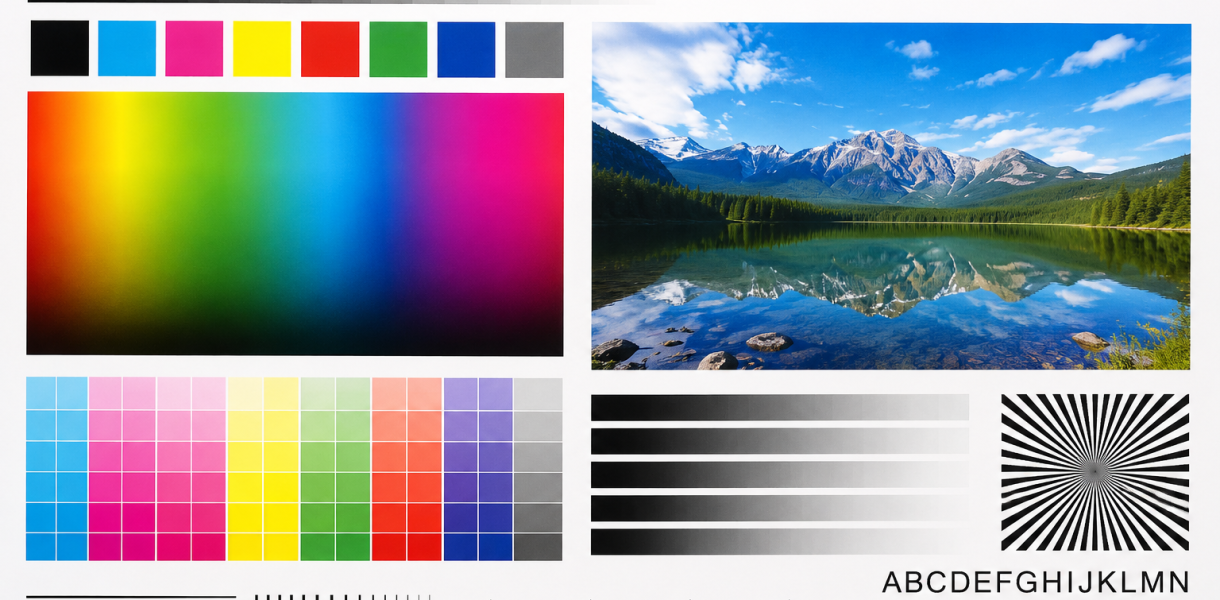
Method 1 — Print a Color Test Page
The best prevention method is regular color printing.
- Open an image with multiple color blocks
- Select the highest print quality
- Print one full-color page
- Check whether all colors appear correctly
- Repeat the print if necessary
This method pushes all colors through the nozzles at the same time and helps prevent clogging.
Method 2 — Clean the Print Head Through Windows
This is the official maintenance method supported by Epson, Canon, HP, and Brother printers.
- Open “Devices and Printers”
- Go to “Printer Properties”
- Open the “Maintenance” tab
- Select “Cleaning” or “Head Cleaning”
- Print a nozzle test page afterward
During this process, the printer pumps ink through the nozzles and removes dried ink or air bubbles.
If the colors do not recover immediately, wait 10–15 minutes and repeat the procedure.
Method 3 — Deep Cleaning
Use this mode only when regular cleaning no longer works.
- Open the printer maintenance menu
- Select “Deep Cleaning”
- Wait until the process finishes
- Print another test page
Important: Deep Cleaning consumes a large amount of ink. Do not run it too many times in a row.
Method 4 — A Useful Maintenance Trick
If you rarely use your printer, this simple habit can significantly reduce the chance of clogged nozzles.
- Print at least one color page every week
- Do not unplug the printer directly from the power outlet
- Keep enough ink inside the cartridges or tanks
- Never let the ink run completely empty
Even a single weekly color print can greatly extend the life of the print head.
How to Tell if the Nozzles Are Dry
- One color completely disappears
- Text prints with gaps
- Cleaning cycles do not improve anything
- The printer makes noise but prints blank pages
- Horizontal streaks appear on paper
Useful Tips
- Print something at least once every 5–7 days
- Avoid using very cheap low-quality ink
- Do not place the printer near sunlight or heaters
- Print a test page immediately after refilling ink
- Regular printing is better than frequent Deep Cleaning cycles
Common Mistakes
Many users start multiple cleaning cycles one after another. This may overheat the print head and waste a large amount of ink.
Another common issue is leaving the printer turned off for several months without printing anything. This is especially dangerous for Epson printers with built-in print heads.
It is also a mistake to print only in black. Color ink must circulate regularly as well.
Frequently Asked Questions
How often should I flush the ink?
Ideally once every 5–7 days.
Can I print only text documents?
Yes, but a full-color test page works much better for nozzle maintenance.
What should I do if one color disappears?
Run “Head Cleaning” and then print a nozzle test page.
Why did print quality become worse after cleaning?
Sometimes ink begins circulating gradually after a long idle period. Wait a few minutes and run another test.
Can a completely dried print head be restored?
Sometimes yes, but manual print head flushing may be required.
Conclusion
The best way to prevent an inkjet printer from drying out is regular color printing. If the problem already appeared, start with the standard cleaning tools built into Windows, and use Deep Cleaning only when necessary.
Read Also
Bookmarks
If this article was helpful, add our blog
about printers and computer technology
to your bookmarks.
Press Ctrl + D