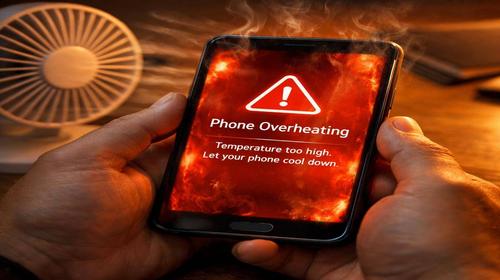
Android Overheating: What Really Helps Cool Down Your Smartphone and Fix Lag
Short description: A practical guide on what to do if your Android phone overheats while gaming, charging, watching videos, using mobile internet, or even sitting idle. We will look at the main causes of Android overheating, useful settings, system optimization, battery checks, and safe ways to reduce smartphone temperature without going straight to a repair shop.
Android overheating is a problem many users face sooner or later. The phone becomes hot even without heavy games, the battery drains quickly, the system starts lagging, and sometimes Android even shows an overheating warning and limits performance. This often happens in summer, during charging, after long video calls, or after a few years of active use.
Many people think the reason is simply an “old phone” or a weak battery. In reality, the situation is usually more complex. Android can overheat because of background processes, buggy updates, overloaded cache, problematic apps, poor-quality chargers, mobile network load, or even a thick case that blocks heat dissipation.
The good news: in many cases, you can reduce the problem without replacing the phone. Proper Android settings, system cleanup, battery monitoring, and a few simple habits can lower the temperature, improve battery life, and make the phone feel faster.
Why Android Overheats
Android overheating usually has more than one cause. Several factors often work together.
- Background processes and multitasking. Dozens of apps running in the background can load the processor and RAM even when the screen is off.
- Games and heavy apps. TikTok, YouTube, navigation, games, video editors, and camera apps can heavily load the CPU and GPU.
- Worn battery. An old battery heats up more during charging and under load.
- Poor charger or cable. Cheap adapters and damaged cables may provide unstable power, causing extra heat.
- Overloaded Android cache. Temporary files and app data can slow down the system and increase CPU activity.
- Heat, sun, and phone case. Direct sunlight, a hot car, or a thick case can block normal cooling.
- Android update bugs. After some updates, the system may handle power management poorly until patches arrive.
As a result, the phone may:
- drain battery faster;
- start lagging;
- reduce screen brightness automatically;
- charge slowly;
- close apps unexpectedly;
- lose performance because of thermal throttling.
The Fastest Way to Cool Down Android
If your Android phone is already hot right now, do this first:
- Remove the phone case.
- Unplug the charger.
- Turn on Airplane Mode.
- Close heavy apps and games.
- Turn off the screen for 10–15 minutes.
This is the safest quick method to reduce smartphone temperature without restarting the device.
Do not put the phone in a fridge or freezer. A sudden temperature change can create condensation inside the phone, which is dangerous for the motherboard, battery, and connectors.
Step-by-Step Guide: What to Do If Android Overheats
- Check what is heating the phone
Open:
Settings → Battery → Battery usage
Check:
- which apps consume the most battery;
- what works in the background;
- whether any app has abnormal activity.
If one app uses 20–40% of the battery without active use, it is suspicious.
- Clear Android cache
Go to:
Settings → Apps → Storage → Clear cache
It is especially useful to clear cache for:
- TikTok;
- YouTube;
- Chrome;
- Instagram;
- Telegram;
- Google Play Services.
On older smartphones, clearing cache can noticeably improve performance and reduce background load.
- Enable Battery Saver
Open:
Settings → Battery → Battery Saver
This helps to:
- reduce background activity;
- limit some sync processes;
- lower CPU load;
- extend battery life.
Also:
- lower screen brightness;
- disable Always On Display;
- turn off Bluetooth and GPS when they are not needed;
- avoid using the phone while charging.
- Check the charger and cable
Very often Android overheats because of a low-quality charger.
Typical signs:
- the phone gets hot even while idle;
- charging speed constantly changes;
- the cable or adapter becomes too hot;
- fast charging works unstable.
Use:
- an original adapter;
- a quality USB cable;
- a certified charger;
- a clean charging port.
This is especially important for fast charging.
- Update Android and apps
Go to:
Settings → System → System update
Also update apps through Google Play.
Sometimes one buggy version of TikTok, Chrome, Instagram, or Google Play Services can keep the processor active all the time.
- Check battery health
You can use apps such as:
- AccuBattery;
- GSam Battery Monitor;
- CPU Monitor.
If the battery is badly worn, overheating becomes much more common.
Typical signs of battery wear:
- the phone gets very hot while charging;
- battery percentage drops suddenly;
- the phone drains in a few hours;
- the phone shuts down at 10–20% charge.
In this case, replacing the battery may solve the overheating problem completely.
- Limit background processes
For advanced users:
Settings → About phone → tap “Build number” 7 times
Then open:
Developer options → Background process limit
Do not choose “No background processes” because it may break notifications.
Better options:
- Standard limit;
- or 2–4 background processes.
- Last option: factory reset
If Android still overheats after all steps:
Settings → System → Reset options → Erase all data
Before doing this, make a backup.
Sometimes Android accumulates years of conflicts, old app data, broken settings, and update problems. A clean reset can make the phone stable again.
Useful Tips
- Do not play games while charging. This is one of the worst scenarios for battery temperature.
- Do not leave your phone in a car under direct sunlight.
- Clear cache of heavy apps at least once a month.
- Disable auto-brightness if it behaves too aggressively.
- Do not install suspicious “RAM cleaner” apps. Many of them create more load than they remove.
- Little-known trick: if your Android phone overheats mostly on mobile internet, try switching from 5G to LTE manually. On some smartphones, the 5G modem consumes more power and creates noticeably more heat.
Common Mistakes
- Putting the phone in a fridge
A sudden temperature drop can create condensation inside the device. - Charging the phone under a pillow or blanket
Heat cannot escape properly, so the battery and motherboard heat up faster. - Using cheap chargers
Poor-quality adapters are one of the most common causes of overheating during charging. - Ignoring battery health
An old battery often becomes the main reason why Android overheats. - Not updating the system for years
Old Android versions may handle power management worse. - Keeping too many apps open in the background
Even a powerful phone can overheat if too many apps keep running.
Frequently Asked Questions
Why does my Android phone get hot even without games?
The most common reasons are background apps, mobile network load, poor charging, a worn battery, or a system bug after an update.
What temperature is normal for Android?
During everyday use, mild warmth is normal. Under load, around 35–40°C is usually acceptable. If the phone becomes uncomfortable to hold, there is a problem.
Is it normal for Android to heat up while charging?
A little warmth is normal. Strong heat during charging is not normal and may indicate a bad charger, damaged cable, battery wear, or heavy background activity.
Does clearing cache help with overheating?
Yes, especially on older Android phones. It can reduce background load and improve system response.
Should I close all apps all the time?
No. Android manages memory automatically. But heavy apps, games, navigation, and video apps should not be left running unnecessarily.
Why does Android get hot in my pocket?
Usually because of background sync, GPS, mobile internet, poor signal, or a problematic app that keeps running while the screen is off.
Can overheating damage my phone?
Yes. Constant overheating speeds up battery degradation and may damage internal components over time.
Will a factory reset fix Android overheating?
Sometimes yes, especially if the problem is caused by software conflicts, old app data, or broken settings after updates.
Related Articles
Bookmarks
If this guide was useful, add our
Android and smartphone blog
to your bookmarks.
Press Ctrl + D