
What to Do If Your Monitor Displays a Blurry Image
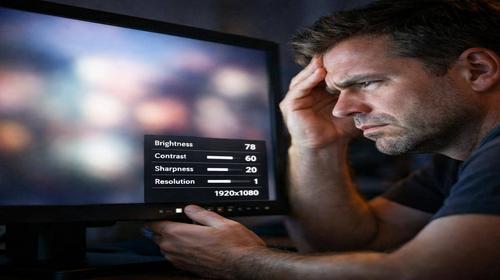
Short description: A blurry screen can make work uncomfortable and reduce productivity. Learn the main causes of blurry monitor images and how to fix them with simple settings and adjustments. :contentReference[oaicite:0]{index=0}
A blurry image on your monitor is one of the most common issues computer users face. When text and graphics appear unclear or smeared, it not only becomes frustrating but can also strain your eyes and reduce efficiency. The good news is that in most cases, this issue can be resolved without professional help. In this guide, we’ll explore the main reasons behind blurry display output and provide practical solutions to restore sharp image quality. Whether you’re using a desktop PC or a laptop, these tips will help you achieve a clear and crisp display.
What Is a Blurry Monitor Image?
A blurry image occurs when text, icons, and graphical elements on the screen appear fuzzy, soft, or distorted. Fonts may look washed out, edges become unclear, and overall visual quality drops significantly. This usually happens when display settings do not match the monitor’s native resolution or optimal configuration. As a result, pixels are not aligned correctly. The issue is especially noticeable when working with text, spreadsheets, or design tools where clarity is essential. Unlike hardware damage, most blur-related problems can be fixed through software settings.
When Does This Problem Occur?
Blurry screens can appear in various situations. A common cause is after a system update, when scaling settings change and no longer match your monitor. It may also happen after adjusting screen resolution or connecting a new display. Switching from a smaller laptop screen to a larger external monitor can also reveal blur issues. Sometimes the problem appears after turning the monitor off and on in the wrong sequence. Using incorrect cables or adapters, or selecting the wrong resolution, can also lead to blurry output.
Main Causes of a Blurry Display
- Incorrect screen resolution that does not match the monitor’s native settings
- Low pixel density, especially when using large displays or TVs as monitors
- Outdated or improperly installed graphics drivers
- Incorrect Windows scaling settings affecting text and UI clarity
- Connection problems such as damaged cables or use of analog adapters
Step-by-Step Guide to Fix a Blurry Screen
- Check the cable used to connect your monitor. Always prefer digital connections like HDMI or DisplayPort instead of VGA adapters. Make sure the cable is securely connected on both ends.
- Restart your computer. Many temporary display issues are resolved after a reboot. It is recommended to turn on the monitor first, then the computer.
- Set the correct screen resolution. Right-click on the desktop, open display settings, and choose the recommended resolution (usually the highest available).
- Update your graphics drivers. Open Device Manager, locate your GPU, and update the driver. This often improves image clarity.
- Check the results. Text should appear sharp, and images should look clear. If not, proceed with advanced solutions.
Useful Tips for Better Display Quality
- Run the ClearType tool by typing cttune in Windows search to improve font rendering.
- Enable Windows scaling fix for blurry apps in display settings.
- If the issue appears in a specific application, update that software.
- Check your monitor settings menu and disable image enhancement or stretching modes.
- If your hardware is outdated, consider upgrading to a newer monitor or GPU.
Advanced Settings to Improve Image Quality
If basic adjustments do not solve the issue, try advanced system settings. Open Run (Win + R), type sysdm.cpl, and press Enter. Go to the Advanced tab and click Settings under Performance. Choose “Adjust for best appearance” and apply changes. Also check advanced scaling settings in Windows and enable automatic fixing for blurry apps. In some cases, adjusting scaling slightly (for example, from 125% to 124%) can resolve rendering issues.
Common Mistakes
Many users make simple mistakes that lead to blurry images. Turning on the computer before the monitor may cause detection issues. Using VGA-to-HDMI adapters often degrades signal quality. Another mistake is relying only on driver updates while ignoring resolution settings. Users also forget to install official GPU drivers and instead rely on default Windows drivers. When using a TV as a monitor, built-in image processing features can distort text if not disabled.
FAQ About Blurry Monitor Images
Why is my monitor blurry after a Windows update?
New updates may change scaling behavior. Set the recommended resolution, update GPU drivers, and run ClearType for better text clarity.
How do I choose the correct resolution?
Use the monitor’s native resolution, usually the highest option available in display settings.
Will updating drivers fix the issue?
Often yes, but not always. If the problem is caused by scaling or resolution, additional adjustments are required.
Why is my TV blurry when used as a monitor?
TVs often apply image processing. Disable enhancement features and set the correct resolution.
Does cable quality affect image clarity?
Yes, low-quality or analog cables can distort the signal. Use high-quality HDMI or DisplayPort cables.
Conclusion
A blurry monitor image can significantly affect comfort and productivity, but in most cases, it is easy to fix. Start by setting the correct resolution, updating your graphics drivers, and checking your cable connection. If needed, use advanced scaling and font optimization tools. By following these steps, you can restore a sharp, clear display and work more efficiently without eye strain.
Read also
Find more useful tips in the Monitor section.