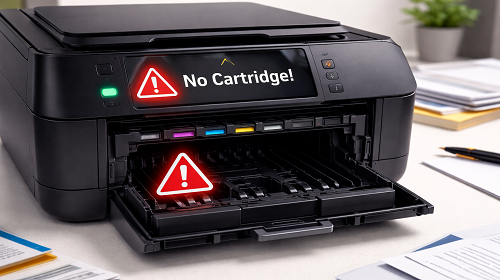
What to Do If Your Printer Does Not Recognize the Cartridge
Short description: Learn why your printer cannot detect a cartridge, what causes this issue, and how to solve it quickly without visiting a service center.
When the Problem Occurs
- The printer displays a cartridge error after installation.
- The device does not recognize a new or refilled cartridge.
- A “cartridge not recognized” message appears.
- The printer refuses to print.
- After replacing or cleaning the cartridge, the device stops working properly.
What You Should Check
- Correct cartridge installation. Make sure the cartridge is fully inserted and locked into place. Even a slight misalignment may prevent the printer from detecting it.
- Condition of the contacts. Check the metal contacts on both the cartridge and inside the printer. If they are dirty or oxidized, carefully clean them with a dry, lint-free cloth.
- Protective tapes and seals. New cartridges often come with protective strips or plastic covers. If they are not removed before installation, the printer may not recognize the cartridge.
- Cartridge compatibility. Verify that the cartridge model is designed specifically for your printer. Some third-party cartridges may not be recognized correctly.
- Printer restart. Turn the printer off for a few minutes and then turn it back on. This can reset temporary system errors.
- Driver update or reinstallation. In some cases, the issue is caused by software problems. Installing the latest printer drivers may solve the problem.
- Cartridge condition. Check whether the cartridge is damaged. Older cartridges or those that have been refilled multiple times may eventually fail.
- Cartridge chip. Modern cartridges contain electronic chips. If the chip is damaged or incompatible, the printer may not recognize the cartridge.
- Printer cleaning. Dust, toner residue, or dried ink inside the printer can interfere with proper operation.
- Printer firmware. Some firmware updates can block certain compatible or non-original cartridges.
Useful Tips
- Use original cartridges or trusted compatible alternatives.
- Avoid touching the cartridge contacts with your fingers.
- Clean your printer regularly.
- Store cartridges in a dry environment.
- Keep printer drivers and software up to date.
- Always verify the exact cartridge model before purchasing a replacement.
Common Mistakes
The most common mistake is installing the cartridge incorrectly or failing to remove protective seals before installation. Another frequent issue is the use of low-quality or incompatible cartridges. Neglecting to clean both the contacts and the printer itself can also lead to cartridge recognition errors.
Frequently Asked Questions
Could the problem be caused by the printer itself?
Yes. In some cases, the issue is related to the printer’s internal contacts or electronic components.
Do refilled cartridges work properly?
Yes, but not always. Problems often occur if the cartridge chip is damaged or not reset correctly.
Should I reinstall the printer driver?
Yes. Reinstalling or updating the driver can solve communication issues between the printer and the computer.
Can restarting the printer help?
Yes. A restart is one of the simplest and most effective troubleshooting methods.
Can I use third-party cartridges?
Yes, but some printer models may not recognize non-original cartridges.
What if nothing helps?
In that case, it is recommended to contact a professional service center for diagnostics.
Should I clean the cartridge contacts?
Yes. Dirty contacts are one of the most common reasons why a printer cannot detect a cartridge.
Can firmware block a cartridge?
Yes. Some manufacturers implement such restrictions through firmware updates.
Should I buy a new cartridge?
If the current cartridge is damaged or worn out, replacing it is often the best solution.
Conclusion
If your printer does not recognize a cartridge, the cause may be related to either the cartridge itself or the printer. Checking compatibility, cleaning the contacts, and ensuring proper installation will often help identify and resolve the problem quickly without unnecessary expenses.
Related Articles
Quick tip: press Ctrl + D to bookmark this page.