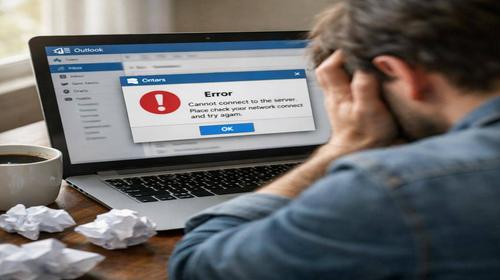
Outlook Not Sending Emails
Short description: Outlook not sending emails? Fix Outlook issues and email errors with this step-by-step guide. Learn how to configure SMTP, check network settings, and resolve common problems in Windows for stable email performance.
When this problem occurs
- Outlook is working in offline mode due to network issues.
- Incorrect SMTP server settings or wrong account password.
- Emails are stuck in the Outbox due to large or corrupted attachments.
- Conflicts with add-ins or a damaged PST data file.
- Authentication problems or restrictions from the email provider.
Step-by-step instructions
- Check connection status in Outlook. Look at the bottom-right corner of Outlook. If you see Working Offline, Disconnected, or Trying to connect, go to the Send/Receive tab and disable Work Offline. Then test your internet connection by opening a website. If needed, restart your router. This solves many Outlook network issues.
- Clear the Outbox folder. Open the Outbox and move stuck emails to Drafts. Open each email, remove large attachments (over 5 MB), and resend. Large or corrupted attachments often block sending. You can also upload files to OneDrive and send links instead.
- Check account settings. Go to File > Account Settings > Account Settings. Select your email and click Change. Verify SMTP settings: Gmail uses smtp.gmail.com with port 587 and STARTTLS, Outlook uses smtp-mail.outlook.com port 587. Enable SMTP authentication and update your password if needed. If you use two-factor authentication, create an app password.
- Disable add-ins in safe mode. Launch Outlook in safe mode (Outlook /safe). If sending works, go to File > Options > Add-ins. Disable all COM add-ins, restart Outlook, and enable them one by one to find the problematic one.
- Repair PST file and profile. Run scanpst.exe and select your PST file. Click Start to repair. If it doesn’t help, create a new Outlook profile in Control Panel and configure your account again. This resolves serious Outlook issues.
Useful tips
- Archive old emails regularly to keep PST file under 50 GB.
- Use IMAP instead of POP for better synchronization.
- Keep Outlook updated via Office updates.
- Use cloud links instead of large attachments.
- Check email rules to avoid blocking messages.
Common mistakes
Users often ignore offline status, leaving emails stuck in Outbox. Using outdated passwords causes authentication errors. Sending files larger than allowed blocks the queue. Antivirus add-ins can conflict with SMTP. Not repairing PST files leads to repeated errors. Avoid these mistakes for stable Outlook performance.
Frequently asked questions:
Does this work on other Windows versions?
Yes, works on Windows 10 and 11 with Outlook 2016-2021.
Does it affect performance?
No, repairs do not slow down your system.
Does this work on laptops?
Yes, fully compatible.
Do I need to restart the computer?
Not always, but restarting Outlook is recommended.
Do I need to remove old versions?
No, updating Outlook is enough.
Can Windows updates cause this?
Rarely, but check Outlook updates after system updates.
How to check if fixed?
Send a test email and ensure Outbox is empty.
Can I use older versions?
It is recommended to use the latest version.
What if the issue returns?
Check network, archive PST, or contact provider support.
Conclusion
Outlook not sending emails is usually caused by network issues, incorrect settings, or data file problems. This step-by-step guide helps fix email errors quickly and ensures stable Outlook performance in Windows.