How to Use CrystalDiskInfo
Short description: Learn how to use CrystalDiskInfo to check HDD and SSD health. Discover how to read SMART values, monitor disk temperature, and detect hard drive problems before data loss happens.
When this program is useful
- Your computer has become slower.
- The hard drive makes noise or clicking sounds.
- You want to check HDD or SSD health.
- Windows freezes or shows errors.
- You need to monitor disk temperature.
The fastest way to check your drive
- Download CrystalDiskInfo.
- Install it or use the Portable version.
- Open the program.
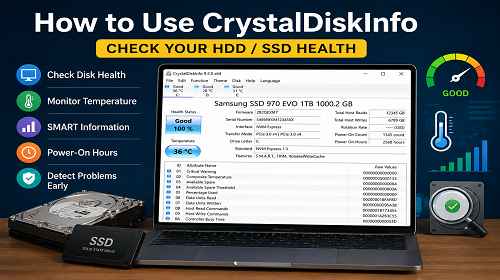
- Check the disk status — Good, Caution, or Bad.
- Review temperature and SMART values.
What is CrystalDiskInfo?
CrystalDiskInfo is a free Windows utility designed to monitor HDD, SSD, and NVMe drive health.
The software analyzes SMART values and helps detect disk problems before complete drive failure occurs.
What CrystalDiskInfo shows
- Disk health status
- HDD or SSD temperature
- Power-on hours
- Power cycle count
- SMART errors
- Bad sectors
- SATA or NVMe interface information
How to install CrystalDiskInfo
- Download the software from the official website.
- Run the installer.
- Install the program on Windows.
- Launch CrystalDiskInfo.
A Portable version is also available without installation.
How to read disk status
Good
The drive works normally and has no critical issues.
Caution
The program detected problems such as bad sectors or unstable sectors. It is recommended to create a backup immediately.
Bad
The drive has serious issues and may fail soon. Replacing the storage device is strongly recommended.
What is SMART?
SMART is a self-monitoring system built into storage drives. It tracks disk health and records hardware errors.
CrystalDiskInfo displays information such as:
- Reallocated Sectors Count
- Current Pending Sector
- Power-On Hours
- Temperature
- Read Error Rate
What disk temperature is normal?
- HDD — 30–45°C
- SSD — 30–50°C
- NVMe SSD — up to 70°C
If the temperature is too high, check cooling and airflow inside the computer or laptop.
What to do if CrystalDiskInfo shows Caution
- Create a backup of important files.
- Scan the drive for errors.
- Monitor SMART values regularly.
- Prepare for disk replacement.
Useful tips
- Check drive health at least once a month.
- Avoid HDD or SSD overheating.
- Use an SSD for Windows installation.
- Create backups regularly.
- Do not ignore Caution status.
Frequently asked questions
Is CrystalDiskInfo free?
Yes, the program is completely free.
Does CrystalDiskInfo work with SSDs?
Yes, it supports HDD, SSD, and NVMe drives.
What does Caution mean?
The drive has problems or bad sectors.
Can SMART be trusted?
Yes, SMART helps detect drive problems early.
What HDD temperature is normal?
Usually around 30–45°C.
Should I replace a drive with Bad status?
Yes, such a drive may fail completely soon.
Does CrystalDiskInfo support Windows 11?
Yes, the software supports Windows 10 and Windows 11.
Conclusion
CrystalDiskInfo is one of the best tools for checking HDD and SSD health on Windows. It helps users detect storage problems early, monitor SMART values, and avoid losing important data.
Read also
Bookmarks
If this article was helpful, bookmark our Windows and software blog.
Press Ctrl + D