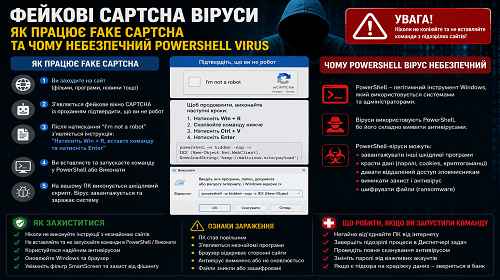
Fake CAPTCHA Virus — How Fake CAPTCHA Attacks Work and Why PowerShell Malware Is Dangerous
Short description: Did a website ask you to “verify that you are not a robot”, press Win + R, open PowerShell or paste a strange command? This is one of the most dangerous modern infection methods used in fake CAPTCHA attacks. Below you will learn how captcha virus scams work, why PowerShell malware is especially dangerous and how to protect your Windows computer.
Fake CAPTCHA attacks have recently become one of the fastest-growing malware distribution techniques targeting Windows users. A person visits a website and sees what appears to be a normal browser security check similar to Cloudflare verification or Google CAPTCHA.
However, instead of simply clicking pictures or solving a puzzle, the user is instructed to:
- press Win + R;
- open PowerShell;
- paste a command;
- run a script manually.
At this moment, the user unknowingly launches malicious code directly on the computer.
After execution, the malware may:
- download trojans;
- steal browser passwords;
- capture authentication cookies;
- take over Telegram sessions;
- steal cryptocurrency wallets;
- install remote access tools;
- launch crypto miners;
- disable antivirus protection.
When this problem usually appears
Fake CAPTCHA pages often look highly professional and convincing. Common examples include:
- “Browser verification required”;
- “Cloudflare security check”;
- “Confirm that you are not a robot”;
- “Press Win + R to continue”;
- “Paste this code into PowerShell”;
- “Complete verification to access the website”.
Many users believe this is part of a legitimate anti-bot system, especially because attackers frequently copy real Cloudflare designs.
These attacks are especially common on:
- pirated software websites;
- crack and keygen pages;
- fake streaming services;
- movie download portals;
- adult websites;
- “free software” platforms;
- malicious advertisements and pop-ups.
The easiest way to identify a fake CAPTCHA
A legitimate CAPTCHA will never ask you to:
- press Win + R;
- open PowerShell;
- run CMD commands;
- paste scripts into Windows tools;
- disable antivirus protection;
- execute commands manually.
If a website requests any of these actions, it is very likely a malware or phishing attack.
How fake CAPTCHA malware works
| Stage | What happens | Main goal |
|---|---|---|
| 1 | User visits a website | Display fake CAPTCHA |
| 2 | Website requests Win + R | Launch PowerShell |
| 3 | User pastes a malicious command | Execute malware |
| 4 | PowerShell downloads payload | Infect Windows |
| 5 | Malware gains system access | Steal data or control PC |
Why PowerShell malware is so dangerous
PowerShell itself is a legitimate Windows administration tool. Because of this:
- some antivirus products react more slowly;
- commands appear “system-related”;
- malware may run without EXE files;
- malicious scripts often execute directly in memory;
- some threats leave almost no visible files.
Modern PowerShell malware commonly uses:
- Base64-encoded commands;
- code obfuscation;
- payload downloads from GitHub;
- temporary scripts;
- remote C2 servers.
What fake CAPTCHA viruses can steal
After infection, malware may collect:
- saved browser passwords;
- browser cookies;
- Telegram sessions;
- Discord tokens;
- Steam accounts;
- cryptocurrency wallets;
- Google account sessions;
- banking credentials.
Some commonly used stealers include:
- Lumma Stealer;
- RedLine;
- Vidar;
- Raccoon;
- RisePro.
Step-by-step guide — what to do after running a PowerShell command
- Disconnect the Internet immediately.
This may stop stolen data from being uploaded. - Close PowerShell.
If the process is still running, terminate it through Task Manager. - Run a full antivirus scan.
Recommended tools include:- Microsoft Defender Offline;
- Malwarebytes;
- ESET Online Scanner;
- KVRT.
- Change your passwords.
Especially for:- Google;
- Telegram;
- Steam;
- Discord;
- banking services;
- crypto exchanges.
- Check Windows startup entries.
Malware may hide in:- Task Scheduler;
- Run Registry keys;
- Startup folders;
- Windows Services.
- Inspect your browsers.
Stealers often target:- cookies;
- saved passwords;
- active sessions.
How to check Windows after a fake CAPTCHA attack
Possible signs of infection include:
- PowerShell opening automatically;
- browser redirects to advertisements;
- accounts unexpectedly logged out;
- Telegram sessions disappearing;
- suspicious processes running in Windows;
- high CPU or RAM usage;
- disabled antivirus protection.
You should also inspect:
- Task Scheduler;
- Autoruns;
- Startup applications;
- Defender exclusions;
- browser extensions.
Useful tips and hidden tricks
- A real CAPTCHA never requires PowerShell commands.
- If a website asks you to press Win + R, close the page immediately.
- Never run commands you do not understand.
- Keeping Microsoft Defender enabled significantly improves protection.
- Enable Safe Browsing in Chrome or Edge.
- Avoid pirated software websites and fake downloads.
- A lesser-known trick: many fake CAPTCHA attacks are delivered through malicious ads. Ad blockers can greatly reduce the infection risk.
- If you work with cryptocurrency, use a separate browser profile for wallets and exchanges.
Common user mistakes
Mistake 1 — trusting fake “Cloudflare verification” pages
Attackers frequently copy the real Cloudflare design.
Mistake 2 — running PowerShell commands
This is the exact moment the malware infection starts.
Mistake 3 — ignoring the attack because “nothing happened”
Even without visible symptoms, malware may already have stolen cookies or session tokens.
Mistake 4 — keeping old passwords
After a fake CAPTCHA attack, passwords should always be changed.
Real CAPTCHA vs fake CAPTCHA
| Feature | Real CAPTCHA | Fake CAPTCHA |
|---|---|---|
| Win + R required | Never | Very common |
| PowerShell usage | Never | Frequently used |
| CMD commands | Never | May appear |
| Cloudflare branding | Legitimate | Often copied |
| File installation | Never required | Possible |
Frequently Asked Questions
Can a legitimate CAPTCHA ask me to press Win + R?
No. This is almost always a sign of malware or phishing.
What should I do if I already pasted the PowerShell command?
Disconnect the Internet, scan the PC with antivirus software and change important passwords immediately.
Is PowerShell dangerous by itself?
No. PowerShell is a legitimate Windows tool, but attackers actively abuse it.
Can Microsoft Defender detect fake CAPTCHA malware?
Yes. In many situations Defender can detect malicious PowerShell activity.
Why are fake CAPTCHA attacks becoming so popular?
Because users manually execute the malicious code themselves, bypassing some Windows protections.
Can these attacks steal cryptocurrency?
Yes. Modern stealers actively search for crypto wallets and browser extensions.
Should Windows be reinstalled after infection?
In severe infections, reinstalling Windows is often the safest option.
Read also
Bookmarks
If this article was helpful, bookmark our blog
about cybersecurity and Windows protection.
Press Ctrl + D