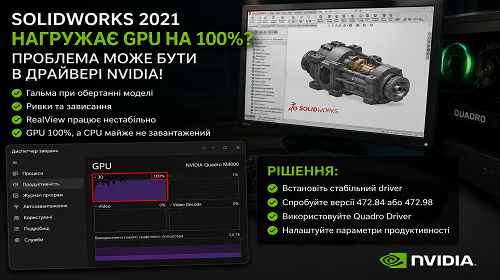
SOLIDWORKS 2021 Overloads the GPU — How NVIDIA Drivers Can Cause Lag and 100% GPU Usage
Short description: Why SOLIDWORKS 2021 may run slowly even on a Quadro GPU, how NVIDIA drivers affect OpenGL and RealView, why GPU usage reaches 100%, and which driver versions work best for stable performance.
One of the most common problems in SOLIDWORKS 2021 is a situation where the processor is barely loaded, there is enough RAM available, but the graphics card constantly runs at 90–100%, causing lag, stuttering, or slow model rotation.
In most cases, the issue is not related to raw hardware power, but to NVIDIA drivers, OpenGL, or unstable RealView Graphics behavior.
This problem is especially common on:
- Quadro M-series GPUs
- older workstation graphics cards
- SOLIDWORKS 2021
- modern NVIDIA R570 / R580 drivers
- RDP or Citrix remote sessions
How the problem looks
A typical situation looks like this:
- CPU usage stays around 20–30%
- RAM usage remains around 40–50%
- GPU usage constantly reaches 100%
- models rotate with stuttering
- RealView works inconsistently
- SOLIDWORKS occasionally freezes
Many users immediately assume the processor or RAM is too weak, but in reality the NVIDIA driver is often the main problem.
Why SOLIDWORKS 2021 works poorly with newer NVIDIA drivers
SOLIDWORKS 2021 was designed before modern RTX AI-oriented drivers and before the NVIDIA R570–R580 driver branches appeared.
Modern NVIDIA drivers are optimized for:
- RTX rendering
- AI workloads
- DLSS
- modern CUDA workloads
- gaming and Vulkan
However, SOLIDWORKS 2021 still relies heavily on the older OpenGL rendering pipeline.
Because of this, older Quadro GPUs can actually perform worse on newer drivers.
Which drivers most commonly cause issues
| Driver Branch | Status for SOLIDWORKS 2021 |
|---|---|
| R580 | Often causes 100% GPU usage and lag |
| R575 | Not recommended for Quadro M-series |
| R570 | May behave unstably in OpenGL workloads |
| R470 / 472.xx | One of the most stable branches for SW2021 |
Best driver for Quadro M4000
For:
- NVIDIA Quadro M4000
- SOLIDWORKS 2021
- Windows 10
- OpenGL workloads
one of the best driver choices is:
NVIDIA 472.84 or 472.98
These drivers:
- are much more stable for OpenGL
- work better with RealView
- reduce GPU load
- cause fewer freezes and stutters
- match the SOLIDWORKS 2021 generation better
What is a certified SOLIDWORKS driver?
Dassault Systèmes tests specific NVIDIA drivers with selected GPU models.
A certified driver:
- works more reliably in SOLIDWORKS
- provides better OpenGL compatibility
- reduces graphical artifacts
- handles large assemblies more smoothly
That is why a newer driver does not always mean better performance.
How to check your driver in SOLIDWORKS
The easiest way is through:
SOLIDWORKS RX
- Open SOLIDWORKS RX
- Go to the Diagnostics tab
- Check:
- GPU model
- driver version
- warnings
- RealView support status
If you see:
- Not Certified
- Unknown Driver
- GPU Warnings
then the driver is very likely the source of the problem.
Why RealView may not work
Even with a Quadro GPU installed, RealView can still become disabled because of:
- incorrect drivers
- RDP or Citrix sessions
- new NVIDIA driver branches
- incorrect GPU detection
- Windows driver updates
During remote sessions, SOLIDWORKS sometimes cannot detect direct GPU access and automatically disables RealView.
The fastest way to reduce 100% GPU usage
- Open:
Tools → Options → Performance - Disable:
- RealView Graphics
- Shadows
- Transparency
- Ambient Occlusion
- Restart SOLIDWORKS
In many cases this immediately reduces GPU load.
How to properly reinstall NVIDIA drivers
Simply updating the driver is often not enough.
The recommended process is:
- Remove the old driver using DDU
- Restart the system
- Install a stable 472.xx driver
- Select:
Perform Clean Install - Disable automatic Windows driver updates
Windows frequently reinstalls modern R580 drivers automatically.
Useful tips
- For SOLIDWORKS 2021, older NVIDIA Enterprise drivers are usually more stable.
- Do not use Game Ready Drivers for CAD workloads.
- Older Quadro GPUs often perform better on older drivers.
- Always perform a full reboot after changing drivers.
- RealView may behave inconsistently over RDP even on a powerful Quadro GPU.
Common mistakes
Many users update NVIDIA drivers to the newest version expecting better performance. In SOLIDWORKS 2021 this often produces the opposite effect.
Another common mistake is installing GeForce drivers instead of Quadro Enterprise drivers.
Many users also leave all graphical effects enabled even on older workstation GPUs.
Frequently Asked Questions
Why is the GPU at 100% while CPU usage stays low?
Because SOLIDWORKS 2021 is often limited by OpenGL and graphical scene processing rather than CPU power.
Which driver is best for Quadro M4000?
For SOLIDWORKS 2021, the 472.xx branch is usually recommended.
Can I use R580 drivers?
Yes, but older Quadro GPUs often perform worse on them.
Will adding more RAM help?
Only if the system is actively using the page file because of insufficient memory.
Why does RealView not work?
The issue may be related to drivers, RDP sessions, or incorrect GPU detection.
Do I really need Quadro drivers?
Yes, professional Enterprise drivers are strongly recommended for SOLIDWORKS.
What is better for SOLIDWORKS — Game Ready or Studio?
For CAD workloads, Enterprise drivers or older stable Studio drivers are usually much better.
Conclusion
In SOLIDWORKS 2021, high GPU usage is often caused not by weak hardware, but by NVIDIA driver compatibility issues. Older professional Quadro GPUs can work much more reliably on 472.xx drivers than on modern R570 or R580 branches. For OpenGL workloads, RealView, and large assemblies, older Enterprise drivers often provide better stability and smoother performance.
Read also
Bookmarks
If this article was useful, add our blog
about graphics cards and PC optimization
to your bookmarks.
Press Ctrl + D