Google Chrome Freezes on Startup
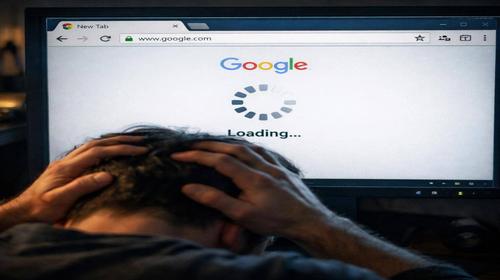
Short description: Google Chrome freezes when launching? Learn why Chrome is slow, takes a long time to open, or becomes unresponsive. Step-by-step guide to fix errors in Windows.
When this problem occurs
- Laptop battery is low or power saving mode is enabled.
- Too many open tabs and browser extensions.
- Accumulated cache and temporary files overload the system.
- Conflict with hardware acceleration or outdated drivers.
- Antivirus blocks startup or malware is detected.
Step-by-step instructions
- Close unnecessary programs and tabs. Press Ctrl + Shift + Esc to open Task Manager. Find Google Chrome processes and end them. Close other programs using high CPU or RAM. Restart your computer and try again.
- Clear cache and browser data. Type chrome://settings/clearBrowserData in the address bar. Select all time range and check all options. Click Clear data. Disable extensions and enable them one by one.
- Disable hardware acceleration. Go to Chrome settings and turn off hardware acceleration. Restart the browser. If needed, update your graphics drivers.
- Reset Chrome settings. Open advanced settings and click Reset settings. You can also create a new profile by renaming the Default folder in the user directory.
- Reinstall Chrome or scan for viruses. Uninstall Chrome, remove data, and install the latest version. Run antivirus scan and set power mode to Balanced or High performance.
Useful tips
- Limit tabs to 10 for better performance.
- Enable page preloading for faster browsing.
- Keep Chrome updated.
- Use extensions to manage tabs.
- Disable background apps.
Common mistakes
Users often ignore cache cleaning. They leave Chrome processes running in the background. Install too many extensions without checking them. Do not update drivers. Install Chrome over old versions without clearing data.
Frequently asked questions:
Does this work on other Windows versions?
Yes, it works on Windows 7, 8, 10, and 11.
Does it affect performance?
On low-end PCs, reduce the number of tabs.
Does this work on laptops?
Yes, especially when adjusting power settings.
Do I need to restart the computer?
Yes, after making changes.
Do I need to remove the old version?
Yes, to avoid conflicts.
Can Windows updates cause this issue?
Yes, updates may create conflicts.
How to check if it is fixed?
Launch Chrome multiple times and check performance.
Can I use older versions?
No, newer versions are recommended.
What if the issue returns?
Regularly clear cache and scan your system.
Conclusion
Chrome freezing on startup is usually caused by cache, extensions, or system resources. Clearing data, resetting settings, and reinstalling the browser help restore stable performance.