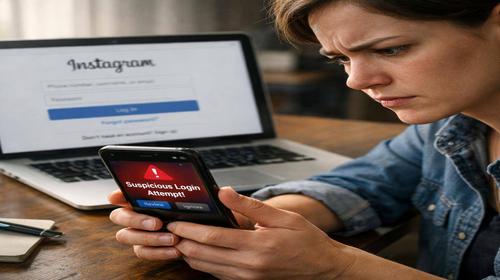
How to Check if Your Instagram Was Hacked and Quickly Secure Your Account
Short description: Learn how to check if your Instagram was hacked, spot warning signs, and secure your account fast with simple steps and tips.
Many users face a situation where their Instagram account suddenly behaves strangely. Posts appear without your action, friends receive unusual messages, or you cannot log in at all. These are common signs that your account may be compromised. If your Instagram was hacked, you risk losing photos, contacts, and even personal data linked to other services.
This guide will help you understand how to check if your Instagram was hacked, identify suspicious activity, and regain control quickly. You will learn key Instagram security practices, how to review active sessions, reset your password, and enable stronger protection. Even if access is lost, there are recovery options available. Acting fast is essential for proper account protection. :contentReference[oaicite:0]{index=0}
What does it mean if Instagram is hacked
When your Instagram is hacked, it means someone gained unauthorized access to your account. Hackers can change your password, post content, send messages, or use your profile for scams. This issue often happens due to weak passwords, phishing attacks, or leaked credentials. Checking login activity helps identify suspicious access. If you see unknown devices or locations, it is a clear warning sign. Understanding these risks helps you protect your Instagram security more effectively.
When this problem occurs
This problem usually appears after clicking suspicious links, using public WiFi, or entering your data on fake websites. You may receive login alerts from unknown locations, notice changes in your email or phone number, or see unexpected posts and messages. For business accounts, this can lead to serious reputation damage. Regular checks help prevent loss of access and improve overall account protection.
Main causes of hacking
- Weak passwords that are easy to guess
- Phishing attacks through fake Instagram emails or websites
- No two factor authentication enabled
- Logging in through unsecured public networks
- Linked compromised email or social accounts
Step-by-step instructions
- Open Instagram and go to your profile settings
- Navigate to Security and find Login Activity
- Review all devices and locations carefully
- Log out from unknown sessions immediately
- Change your password and enable two factor authentication
Useful tips
- Check your email for Instagram alerts about changes
- Update passwords for connected accounts like email or Facebook
- Use unique passwords for each service
- Review login activity regularly
- Avoid clicking suspicious links in messages
Common mistakes
Many users ignore login alerts and assume they are errors. Another mistake is using the same password across multiple platforms, which makes hacking easier. Some forget to log out from old devices or fail to enable two factor authentication. Clicking phishing links without checking URLs is also a major risk. Avoid these mistakes to maintain strong Instagram security.
FAQ
Do I need antivirus software?
Yes, antivirus helps detect malware that can steal login data.
Is VPN useful?
Yes, VPN protects your data when using public WiFi networks.
How to recognize a phishing website?
Check the URL carefully and avoid entering data on suspicious pages.
Can malware slow down my computer?
Yes, malware consumes system resources and may compromise your accounts.
Conclusion
If you suspect your Instagram was hacked, act quickly. Check login activity, remove unknown devices, update your password, and enable extra protection. Strong Instagram security and регуляр monitoring are key to preventing future attacks and keeping your data safe.
Read also
More useful tips can be found in the
Internet safety,
Browsers,
Computer,
Windows and
CMD commands sections.
Bookmark this page and improve readability
To quickly return to this article, add it to your bookmarks using Ctrl + D on Windows or Cmd + D on Mac. This helps you access the guide anytime.
If the text is too small, you can increase it by up to 30 percent using Ctrl and + to zoom in or Ctrl and – to zoom out for better readability.