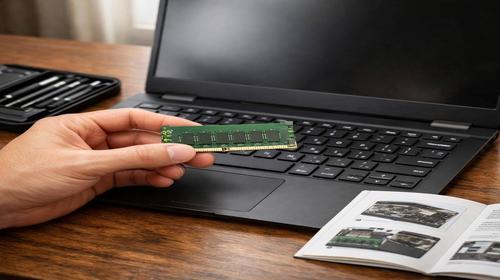
How to Choose RAM for a Laptop: Best Upgrade Guide for Performance Boost
Short description: Learn how to choose RAM for a laptop correctly. Tips on compatibility, frequency, and capacity to upgrade laptop RAM and improve performance.
Many users experience slow laptop performance, where applications lag, multitasking becomes difficult, and even simple tasks take too long. One of the most effective solutions is a laptop RAM upgrade. RAM is responsible for storing temporary data that the processor needs for fast access. When there is not enough memory, the system starts using the storage drive as virtual memory, which significantly slows down performance.
Choosing the right RAM for laptop upgrade is a key step in improving system speed. Modern applications, browsers with multiple tabs, and even basic multitasking require at least 8 GB of memory. Windows 10 or 11 alone can use up to 4 GB, while integrated graphics also consume part of the RAM. Upgrading memory can increase performance by two to three times. The main goal is to select compatible SO-DIMM modules with the correct DDR generation, frequency, and capacity.
In this guide, you will learn everything about laptop RAM upgrade, from checking specifications to installing modules. You will also discover how to avoid common mistakes and achieve maximum performance using dual-channel memory configuration.
Why laptop becomes slow
Slow laptop performance is often caused by insufficient RAM. When memory is full, the system relies on slower storage, which creates delays and reduces speed. Other factors include outdated hardware, overheating, and background processes. Older RAM standards like DDR3 cannot handle modern workloads efficiently. If your memory usage is constantly above 80 percent in Task Manager, it is a clear sign that you need to upgrade your RAM.
Main causes or upgrade opportunities
- Not enough RAM for modern applications and multitasking
- Outdated memory type such as DDR3
- Single-channel configuration reducing performance
- Slow storage being used as virtual memory
- Incompatible or low-frequency RAM modules
Step-by-step instructions
- Check your laptop specifications using tools like CPU-Z or official documentation
- Determine supported RAM type, frequency, and maximum capacity
- Buy compatible SO-DIMM modules from trusted brands
- Turn off the laptop and install RAM modules properly
- Start the system and verify memory detection in BIOS and Windows
Useful tips
- Use at least 16 GB RAM for smooth multitasking and performance
- Install identical modules to enable dual-channel mode
- Choose DDR4 3200 MHz for most laptops
- Check compatibility before buying memory
- Update system drivers after upgrade
Common mistakes
One of the most common mistakes is buying desktop RAM instead of SO-DIMM modules designed for laptops. Another issue is installing RAM with a higher frequency than supported, which limits performance. Many users also ignore dual-channel configuration, reducing system speed. Not checking maximum supported memory or compatibility can lead to errors. Always verify specifications before upgrading.
FAQ
Is upgrading RAM worth it?
Yes, upgrading RAM is one of the most cost-effective ways to improve laptop performance.
How much RAM do I need?
8 GB for basic use, 16 GB for multitasking, and 32 GB for gaming or professional tasks.
Will RAM upgrade speed up laptop?
Yes, it improves multitasking, reduces lag, and increases overall system speed.
Can I install RAM myself?
Yes, most laptops allow easy RAM installation with basic tools.
Conclusion
How to choose RAM for a laptop is an important step in improving performance. A proper laptop RAM upgrade with compatible modules, correct frequency, and enough capacity can significantly boost speed. By following this guide, you can easily upgrade your system and extend the life of your laptop.
Read also
More useful tips can be found in the
Upgrade,
Ram,
Laptop,
Computer and
Hard disk drive sections.
Bookmark this page and improve readability
To quickly return to this article, add it to your bookmarks using Ctrl + D on Windows or Cmd + D on Mac. This helps you access the guide anytime.
If the text is too small, you can increase it by up to 30 percent using Ctrl and + to zoom in or Ctrl and – to zoom out for better readability.