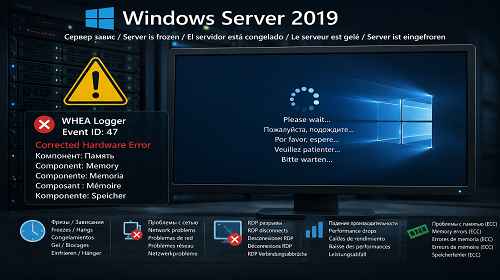
WHEA Logger 47 in Windows Server 2019: How to Detect ECC Memory Errors and Fix Server Freezes
Short description: a detailed practical guide explaining WHEA Logger ID 47 errors in Windows Server 2019, random server freezes, RDP disconnects, ECC memory instability, and how to diagnose faulty RAM using PowerShell commands and Windows event logs.
Many administrators encounter a strange issue on Windows Server 2019 systems: the server appears to work normally, but several times a day it briefly freezes, loses network connectivity, disconnects RDP sessions, or pauses for a few seconds without any BSOD or obvious disk errors.
In many cases the real source of the problem is WHEA Logger Event ID 47, especially on Xeon systems with ECC Registered memory, Dell Precision workstations, X99/C600 chipsets, and Intel RSTe RAID controllers.
This article explains how to detect corrected ECC memory errors, analyze WHEA logs, identify suspicious DIMM modules, and troubleshoot server freezes using PowerShell.
What Is WHEA Logger Event ID 47
WHEA stands for Windows Hardware Error Architecture.
The event:
WHEA Logger Event ID 47
means:
Corrected Hardware Error
This indicates that the CPU memory controller or ECC subsystem detected a hardware-level memory error and corrected it before the operating system crashed.
Typical message:
Component: Memory
Error Source: Corrected Machine Check
This is an important warning sign because the hardware is already unstable even if the server still works.
Typical Symptoms of WHEA Memory Errors
Corrected ECC memory problems usually appear as:
- short server freezes;
- temporary RDP disconnects;
- network connection drops;
- random lag spikes;
- 1C or SQL freezes;
- mouse cursor pauses;
- temporary RAID latency spikes;
- system hangs without BSOD.
Because ECC memory corrects errors automatically, administrators often spend weeks troubleshooting Windows instead of hardware.
The Fastest Way to Check WHEA Errors
Open PowerShell as Administrator and run:
PowerShell:
Get-WinEvent -FilterHashtable @{LogName=’System’; ProviderName=’Microsoft-Windows-WHEA-Logger’; Id=47}
If multiple events appear, the server is experiencing corrected hardware memory errors.
How to Find All Memory Errors from the Last 30 Days
The following command collects all WHEA memory-related events:
PowerShell:
$Start=(Get-Date).AddDays(-30); Get-WinEvent -FilterHashtable @{LogName=’System’; ProviderName=’Microsoft-Windows-WHEA-Logger’; StartTime=$Start} | Where-Object {$_.Message -match “memory”} | Select-Object TimeCreated, Id, LevelDisplayName, Message | Format-Table -Auto
This allows you to:
- determine when the problem started;
- check whether the issue is getting worse;
- compare freezes with hardware events;
- identify recurring ECC corrections.
How to Count Corrected ECC Errors
PowerShell:
Get-WinEvent -FilterHashtable @{LogName=’System’; ProviderName=’Microsoft-Windows-WHEA-Logger’; Id=47} | Measure-Object
If the number continues growing, the hardware issue is still active.
How to Display Installed Memory Modules
One of the most common causes of WHEA memory instability is mixed ECC memory.
For example:
- 7 identical modules;
- 1 module with a different revision;
- different SPD tables;
- different timings or memory ranks.
Use this command to display all installed RAM modules:
PowerShell:
Get-WmiObject Win32_PhysicalMemory | Select BankLabel, DeviceLocator, Capacity, Speed, Manufacturer, PartNumber
This is one of the easiest ways to detect mismatched ECC modules.
Real Server Freeze Example
A Dell Precision 5810 running Windows Server 2019 experienced:
- random RDP freezes;
- network disconnects;
- system hangs for several seconds;
- Intel RAID latency spikes;
- no critical disk errors.
PowerShell diagnostics revealed:
- WHEA Logger Event ID 47;
- corrected ECC memory errors;
- one memory module with a different part number.
Installed RAM:
- 7x Samsung M393A2K40BB1-CRC
- 1x Samsung M393A2K40CB1-CRC
Mixed ECC Registered memory frequently causes instability on Xeon and X99 systems.
Why the Server Freezes Without a BSOD
ECC memory corrects hardware errors automatically.
When a corrected ECC error occurs:
- the CPU retries memory operations;
- memory pages are revalidated;
- the memory controller performs retraining;
- latency spikes affect the entire system.
The user sees this as:
- a freeze;
- an RDP disconnect;
- a network outage;
- slow application response;
- temporary server hangs.
How to Test Suspicious DIMM Modules
The safest practical method is DIMM pair testing.
- Identify the module that differs from the others.
- Remove the suspicious DIMM together with its paired slot.
- Start the server.
- Monitor WHEA events for several days.
If WHEA 47 errors stop appearing, the issue was likely caused by that memory pair.
Why DIMMs Should Be Removed in Pairs
Xeon processors use multi-channel memory controllers.
For stable testing it is better to:
- keep memory channels symmetrical;
- avoid uneven DIMM topology;
- preserve proper interleaving;
- reduce stress on the memory controller.
Useful PowerShell Commands for Server Freeze Diagnostics
Disk latency:
Get-Counter ‘\PhysicalDisk(_Total)\Avg. Disk sec/Transfer’
Disk queue:
Get-Counter ‘\PhysicalDisk(_Total)\Current Disk Queue Length’
Intel RAID errors:
Get-WinEvent -LogName System -MaxEvents 1000 | Where-Object { $_.ProviderName -match “storport|iaStor|RST|RAID” }
Disk-related errors:
Get-WinEvent -LogName System -MaxEvents 1000 | Where-Object { $_.ProviderName -match “disk|ntfs|volsnap|stornvme|storahci” }
Common Administrator Mistakes
- Ignoring WHEA warnings because there is no BSOD.
- Mixing different ECC memory revisions.
- Using outdated BIOS firmware.
- Ignoring Intel RSTe driver problems.
- Assuming Windows is the source of freezes.
- Leaving corrected ECC errors unresolved for months.
What Else Can Cause WHEA Logger 47
The problem is not always the RAM module itself.
Possible causes include:
- CPU memory controller instability;
- motherboard problems;
- bad DIMM slot contact;
- VRM overheating;
- PCIe instability;
- Intel RAID controller issues;
- old chipset firmware.
Frequently Asked Questions
Is WHEA Logger 47 dangerous?
Yes. It indicates real hardware instability.
Can corrected ECC errors cause freezes?
Yes. Short freezes are one of the most common symptoms.
Should memory be replaced immediately?
It is better to test DIMMs first before replacing hardware.
Can the CPU cause WHEA memory errors?
Yes. The Xeon memory controller may also become unstable.
Can BIOS updates help?
Very often, especially on Dell Precision and X99 systems.
Can RAID problems look similar?
Yes. Intel RSTe issues may produce similar freezes.
Can corrected ECC errors be ignored?
No. Corrected errors may eventually become uncorrectable hardware failures.
Read Also
Bookmarks
If this article helped you, bookmark our RAM and Windows Server troubleshooting section.
Press Ctrl + D