How to Secure Your Google Account: 5 Essential Steps to Protect Your Data
Short description: Learn how to secure your Google account with simple steps. Protect your data from hackers, phishing attacks, and unauthorized access.
Your Google account is the center of your digital life. It stores emails, documents, photos, saved passwords, and access to many services. If someone gains access to your account, they can steal personal data, access other platforms, and even impersonate you. Cyberattacks on accounts are increasing every year, and many users become victims due to weak security settings.
The good news is that you can significantly improve your Google account security without technical skills. By following simple steps, you can protect your data and prevent unauthorized access. This guide explains how account protection works, what risks exist, and how to strengthen your security quickly and effectively. :contentReference[oaicite:0]{index=0}
What is Google account security
Google account security is a set of measures designed to prevent unauthorized access. It includes a strong password, two factor authentication, activity monitoring, and blocking suspicious apps. Google automatically detects unusual activity and sends alerts, but users should also actively manage security settings. Protecting your account is not a one-time action but an ongoing process.
When your account is at risk
Your account becomes vulnerable in several situations. Using weak or repeated passwords across multiple websites increases risk. Logging in from public computers or unsecured WiFi networks can expose your credentials. Phishing attacks are also common, where users enter passwords on fake websites. Malware or unsafe browser extensions can capture your data. Ignoring updates and security alerts also makes your account easier to compromise.
Main causes of account compromise
- Weak or easy to guess passwords
- Using the same password on multiple services
- Phishing attacks through fake emails or links
- Installing unsafe software or browser extensions
- Not enabling two factor authentication
Step-by-step instructions
- Open your Google account settings at myaccount.google.com
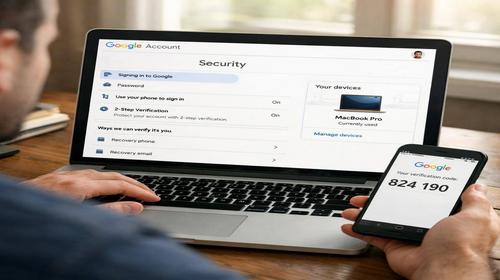
- Go to the Security section to review protection status
- Check your devices and remove unknown sessions
- Enable two factor authentication for extra protection
- Change your password to a strong and unique one
Useful tips
- Regularly review account activity and login history
- Add a recovery email and phone number
- Remove unused apps with access to your account
- Avoid clicking suspicious links in emails
- Use VPN when connecting to public WiFi
Common mistakes
Many users store passwords in unsafe places such as text files or notes. Another mistake is trusting unknown apps and granting them full access. Ignoring security alerts from Google can lead to serious issues. Using SMS only for authentication may also be less secure compared to apps like Google Authenticator. Not updating passwords regularly increases the risk of hacking.
FAQ
Can I use Google account without two factor authentication?
Yes, but it is not recommended because it reduces security significantly.
What should I do if I forgot my password?
Use Google Account Recovery to reset your password and restore access.
Do I need a password manager?
Yes, it helps create and store strong passwords securely.
Can phishing attacks steal my account?
Yes, if you enter your password on a fake website, attackers can gain access.
Conclusion
Learning how to secure your Google account is essential for protecting your personal data. By using strong passwords, enabling two factor authentication, and monitoring activity, you can reduce risks significantly. Improve your Google account security today to stay safe online and avoid future threats.
Read also
More useful tips can be found in the
Internet safety,
Browsers,
Computer,
Windows and
CMD commands sections.
Bookmark this page and improve readability
To quickly return to this article, add it to your bookmarks using Ctrl + D on Windows or Cmd + D on Mac. This helps you access the guide anytime.
If the text is too small, you can increase it by up to 30 percent using Ctrl and + to zoom in or Ctrl and – to zoom out for better readability.