What to Do If Your Graphics Card Shows Artifacts on the Screen
Short description: Graphics card artifacts are a common issue that can indicate overheating, driver problems, unstable power delivery, or hardware failure. Learn how to diagnose and fix a graphics card that displays artifacts on the screen before it leads to more serious damage.
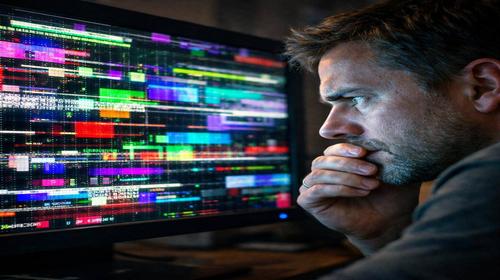
If your graphics card is displaying artifacts on the screen, it can make using your computer difficult and frustrating. The image may become distorted with colored dots, lines, flickering, missing textures, or blocks of incorrect pixels. These visual glitches can appear while gaming, watching videos, editing graphics, or even while using the Windows desktop.
Artifacts are often an early warning sign that something is wrong with your graphics card. In some cases, the issue is caused by software, drivers, or overheating. In others, it may indicate a failing GPU or damaged video memory. Understanding the cause of the problem can help you avoid system crashes, performance loss, or even complete graphics card failure.
This guide explains why a graphics card displays artifacts on the screen, how to diagnose the problem, and what steps you can take to fix it. You will also learn common mistakes users make and when professional repair may be necessary.
What Are Graphics Card Artifacts?
Artifacts are visual abnormalities that appear when a graphics card is unable to process or display image data correctly. Instead of a normal picture, you may see:
- Colored dots or pixels.
- Horizontal or vertical lines.
- Screen flickering.
- Distorted textures in games.
- Squares, triangles, or unusual graphical shapes.
- Incorrect colors or image corruption.
Unlike occasional software glitches, graphics card artifacts usually appear repeatedly and often become worse when the GPU is under heavy load.
When Does This Problem Occur?
Artifacts most commonly appear during:
- Modern games with demanding graphics.
- Video editing and rendering applications.
- 3D modeling software.
- Stress testing or benchmarking.
- Hot weather conditions.
- After overclocking the GPU.
If ignored, artifacts can eventually lead to system instability, blue screen errors, driver crashes, black screens, or complete graphics card failure.
Main Causes of Graphics Card Artifacts
- Overheating. Dust buildup, poor airflow, dried thermal paste, or failing fans can cause excessive GPU temperatures.
- Driver Issues. Corrupted, outdated, or incompatible graphics drivers can sometimes create visual glitches.
- Unstable Power Supply. A failing or underpowered PSU may prevent the graphics card from receiving stable voltage.
- Damaged Video Memory (VRAM). Faulty memory chips often cause colored blocks, lines, and corrupted textures.
- Incorrect Overclocking. Excessive GPU or memory overclocking can lead to instability and artifacts.
- Hardware Failure. Aging components, damaged solder joints, or a failing GPU chip can all cause artifacting.
Step-by-Step Troubleshooting Guide
- Check GPU TemperatureInstall monitoring software such as MSI Afterburner, HWMonitor, or GPU-Z. Run a game or benchmark for several minutes and monitor temperatures. If the GPU exceeds 85–90°C, overheating may be the cause.
- Update Graphics DriversDownload the latest drivers from the official NVIDIA, AMD, or Intel website. For the best results, remove old drivers using DDU (Display Driver Uninstaller) before installing the new version.
- Test in Safe ModeBoot Windows into Safe Mode. If artifacts disappear, the problem may be related to drivers, software, or operating system conflicts.
- Run Stress TestsUse FurMark, OCCT, or Unigine Heaven to place the graphics card under load. If artifacts appear during testing, there is likely a hardware issue.
- Inspect the Power SupplyEnsure your PSU provides sufficient wattage and stable power for your graphics card model.
- Clean the Graphics CardPower off the computer, remove dust from the cooling system, and verify that all fans are functioning correctly.
- Reset Overclocking SettingsIf the GPU or memory has been overclocked, restore factory settings and test again.
Useful Tips
- Clean your computer and graphics card every 3–6 months.
- Monitor GPU temperatures regularly while gaming.
- Avoid aggressive overclocking if you are inexperienced.
- Check HDMI, DisplayPort, or DVI cables for damage.
- Keep Windows, DirectX, and graphics drivers updated.
- Ensure your PC case has adequate airflow.
Common Mistakes
One of the most common mistakes is ignoring the first signs of artifacting. Many users continue gaming even when the graphics card is clearly showing symptoms of instability.
Another frequent mistake is installing new graphics drivers without completely removing older versions, which can cause software conflicts.
Some users test only one game and assume the issue is game-specific. Proper diagnosis requires testing multiple applications and benchmarks.
Attempting hardware repairs without proper equipment or experience can also cause additional damage to the graphics card.
Frequently Asked Questions
Why does my graphics card show artifacts only in games?
Games place significantly more load on the GPU and VRAM. If there is overheating or hardware damage, the issue often becomes visible only under heavy load.
Can graphics drivers cause artifacts?
Yes. Corrupted or incompatible drivers may sometimes create graphical glitches that resemble hardware problems.
What GPU temperature is considered safe?
For most modern graphics cards, temperatures up to 80°C under load are considered normal. Temperatures above 90°C require immediate attention.
How can I test VRAM for errors?
You can use tools such as OCCT VRAM Test or Video Memory Stress Test to check for memory-related issues.
Will replacing thermal paste help?
If the problem is caused by overheating, replacing old thermal paste may significantly reduce temperatures and improve stability.
When is professional repair necessary?
If artifacts remain after updating drivers, checking temperatures, cleaning the card, and testing power delivery, professional diagnostics may be required.
Conclusion
If your graphics card displays artifacts on the screen, start by checking temperatures, drivers, cooling performance, and power delivery. These steps can solve many problems without requiring expensive repairs.
However, if artifacts continue to appear after troubleshooting, the issue may be related to failing VRAM or GPU hardware. Early diagnosis can help prevent complete graphics card failure and extend the lifespan of your system.
Related Articles
Quick tip: Press Ctrl + D to bookmark this page.