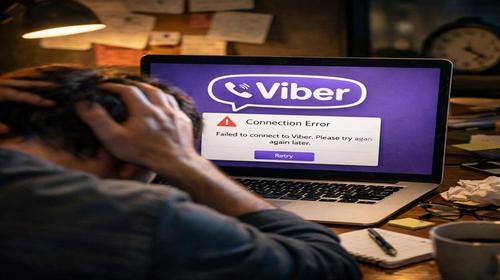
Viber Not Working After Update: How to Fix the Error on Windows 11
Short description: Viber not working after update on Windows 11? Learn how to fix startup errors, restore the app, and eliminate common Viber issues quickly and safely.
When Viber stops working after an update on Windows 11, it often catches users off guard. The application may refuse to open, freeze on startup, or display unexpected errors that prevent normal use. This issue is quite common and usually связан not with hardware failures, but with software conflicts between the updated app and the operating system. After system updates, many programs require adjustments to work correctly, and Viber is no exception.
This guide explains how to fix Viber not working after update and restore stable performance on your PC. You will learn how to identify the cause of the issue, whether it is a background process, corrupted files, or compatibility problems. Even if you have no technical experience, the instructions are simple and practical. By following the steps below, you can quickly bring Viber back to normal operation without reinstalling Windows or contacting a service center.
What is this issue
Viber not working after update is a situation where the application fails to start or runs incorrectly after installing a new version or updating Windows 11. Users may see a blank screen, experience freezing, or receive error messages when trying to launch the app. In most cases, the issue is related to damaged installation files, outdated components, or blocked processes within the system. It does not indicate a serious failure of the computer but requires proper troubleshooting.
When this problem occurs
This problem usually appears after updating Viber itself, installing Windows 11 updates, or changing system drivers. It may happen after restarting the computer, during login, or when launching the app for the first time after an update. Users often encounter it during work or communication, which makes it especially inconvenient. Fixing the issue helps restore access to chats, calls, and files without switching to other devices.
Main causes
- Incompatible or outdated version of Viber
- Frozen background process after update
- Blocked by system security settings
- Damaged or incomplete installation files
- Conflict with recent Windows updates
Step-by-step instructions
- Open Task Manager with Ctrl + Shift + Esc, locate Viber, and end all related processes
- Restart your PC to reset system processes and clear temporary errors
- Download and install the latest version of Viber from the official website
- Completely uninstall the app, restart your computer, and reinstall it again
- Run Viber as administrator to avoid permission issues
Useful tips
- Make sure your internet connection is stable before launching the app
- Temporarily disable security software if it blocks Viber
- Reset network settings using command prompt if needed
- Keep Windows 11 updated for better compatibility
- Install apps only from trusted sources
Common mistakes
Users often overlook background processes, which causes the issue to repeat. Another frequent mistake is incomplete removal of the application, leaving files that interfere with a new installation. Downloading Viber from unofficial sources can also lead to errors. Skipping a system restart after updates is another common reason why the app fails to work properly. Running the application without administrator rights may also prevent it from launching correctly.
FAQ
Why is Viber not working after update?
This usually happens due to software conflicts, corrupted files, or blocked processes in the system.
Can RAM cause this problem?
Yes, insufficient or faulty RAM can lead to freezing and instability in applications.
Will restarting the computer help?
Yes, restarting often resolves temporary errors and restores normal functionality.
When should I contact a specialist?
If none of the solutions work and the app still fails to launch, professional diagnostics may be required.
Conclusion
Viber not working after update on Windows 11 is a common issue that can be fixed with simple steps. Restarting your system, updating the app, or reinstalling it usually solves the problem. By following this guide, you can restore stable Viber performance and prevent similar issues in the future.
Read also
More useful tips can be found in the
Windows,
Computer,
Laptop,
CMD commands and
Internet network sections.