Suspicious Login Alert: How to Detect Phishing and Protect Your Account
Short description: Received a suspicious login alert? Learn how to detect phishing attacks, verify your account safely, and protect your data from hackers.
Have you received a message about a suspicious login to your account? In many cases, this is not a real security warning but a phishing attempt designed to steal your personal data. Cybercriminals often send fake alerts through email, SMS, or messaging apps to trick users into revealing passwords or verification codes. These attacks are becoming more common and can affect anyone who actively uses the internet.
This guide explains how to recognize a suspicious login alert, avoid phishing attacks, and perform a safe account verification. You will learn how to check links, secure your account, and protect your personal data from hackers. Even simple actions can prevent serious problems like account hacking, financial loss, or data theft. Follow these steps to improve your internet security and stay protected online. :contentReference[oaicite:0]{index=0}
What is a suspicious login alert
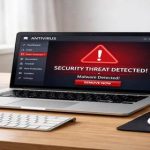
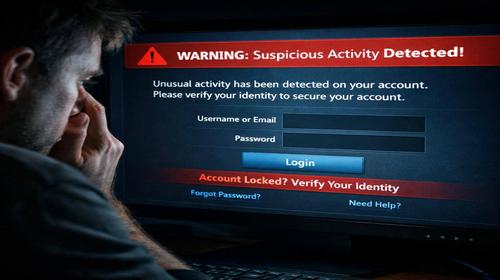
A suspicious login alert is a notification that claims someone has accessed your account from an unknown device or location. While sometimes these alerts are real, many are fake messages created by scammers. These phishing messages imitate trusted services like Google, Microsoft, or banks. They often include urgent warnings and links that lead to fake websites. Once you enter your login details, attackers gain access to your account and personal information.
When this problem occurs
This issue usually appears when you actively use online services such as social networks, email, or online banking. Attackers send mass phishing messages to random users, hoping someone will click the link. You may receive a message about unusual activity, a verification request, or a login attempt. These situations are especially common when using public WiFi networks or downloading files from unknown sources. Understanding this helps you react correctly and avoid risks.
Main causes or risks
- Fake security alerts asking you to enter your password immediately
- Phishing links that imitate official login pages
- Messages requesting verification codes via SMS or email
- Unknown devices appearing in your login history
- Unauthorized changes in your account activity
Step-by-step instructions
- Do not click links in suspicious messages. Open the official website manually
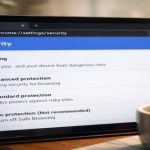
- Check your account login history in security settings
- Verify the website URL carefully before entering any data
- Enable two factor authentication for extra protection
- Change your password and remove unknown devices or apps
Useful tips
- Always check the sender email address for authenticity
- Use antivirus software to scan links and attachments
- Never share passwords or verification codes
- Keep your browser and system updated
- Report suspicious messages as phishing
Common mistakes
Many users click on links in fake alerts without checking the source, which leads to stolen data. Another common mistake is trusting urgent messages that pressure you to act quickly. Users often reuse the same password across multiple accounts, increasing the risk of hacking. Ignoring two factor authentication also makes accounts more vulnerable. Avoid these mistakes to protect your personal information and online security.
FAQ
Do I need antivirus protection?
Yes, antivirus software helps detect malicious links and protect your system.
Is VPN useful for security?
Yes, VPN protects your data on public networks and improves privacy.
How to recognize a phishing website?
Check the URL, look for HTTPS, and verify domain spelling carefully.
Can malware slow down my computer?
Yes, malicious software can consume resources and reduce performance.
Conclusion
A suspicious login alert is often a phishing attempt rather than a real threat. Knowing how to verify your account, avoid fake links, and use strong security measures will help protect your data. Improve your internet security by using two factor authentication and strong passwords to prevent account hacking and data loss.
Read also
More useful tips can be found in the
Internet safety,
Browsers,
CMD commands,
Computer and
Windows sections.
Bookmark this page and improve readability
To quickly return to this article, add it to your bookmarks using Ctrl + D on Windows or Cmd + D on Mac. This helps you access the guide anytime.
If the text is too small, you can increase it by up to 30 percent using Ctrl and + to zoom in or Ctrl and – to zoom out for better readability.