How to Use Two Monitors in Remote Desktop RDP Connection
Short description: Learn how to use two monitors in a Remote Desktop RDP connection to a Windows server. Full setup guide, multi monitor configuration, troubleshooting and optimization tips.
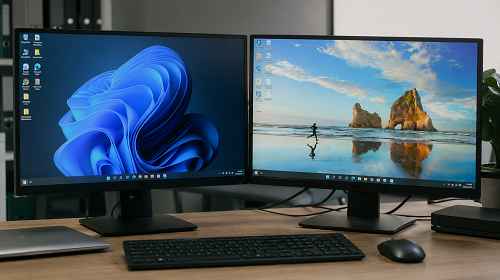
Using two monitors in an RDP remote desktop session makes working with Windows servers much more comfortable and productive. This is especially useful for administrators, accountants, programmers, support engineers and users who constantly work with multiple applications, browser windows or Excel documents.
Many users do not realize that standard Microsoft Remote Desktop fully supports multi monitor mode. Because of this, they continue working on a single screen while constantly switching between windows, even though RDP can easily stretch across two or more displays.
In most situations enabling dual monitor support takes only a few seconds. However, there are several important details that affect stability: monitor scaling, different screen resolutions, old Windows Server versions and outdated Remote Desktop clients.
Below you will find the fastest way to enable two monitors in RDP, detailed setup instructions, practical optimization tips and common problems that prevent the second monitor from working correctly.
When Two Monitors in RDP Are Useful
Dual monitor mode is extremely useful for remote work with accounting software, Excel spreadsheets, browser tabs, CRM systems and Windows administration panels. One screen can display the main application while the second monitor shows documentation, chats or monitoring tools.
System administrators often use one monitor for the remote server and the second one for their local Windows environment. This significantly improves workflow speed and reduces constant window switching.
The difference becomes even more noticeable when using a laptop connected to an external monitor. Instead of buying an expensive ultrawide display, users can simply activate multi monitor mode in Remote Desktop.
The Fastest Way to Enable Two Monitors in RDP
The easiest method is enabling the built-in multi monitor feature inside the standard Windows Remote Desktop Connection client.
- Press Win + R
- Type mstsc
- Click Show Options
- Open the Display tab
- Enable Use all my monitors for the remote session
- Connect to the server
After connecting, the remote desktop will automatically expand across both monitors.
How Multi Monitor Mode Works in RDP
RDP multi monitor mode allows Windows Server to detect multiple screens as one large workspace while still keeping monitors separated individually. This means applications can be moved between displays naturally.
For example, Excel can stay on the left monitor while browser tabs or monitoring dashboards remain on the second display. The experience is very similar to working directly on a local PC.
Modern Windows Server versions such as Server 2016, 2019 and 2022 handle multi monitor support very well even through VPN or internet connections.
Step-by-Step Setup Guide
- First verify that Windows correctly detects both monitors locally. Right-click the desktop and open Display Settings. Make sure Windows is using extended desktop mode instead of duplicate display mode. If Windows itself only sees one monitor, RDP will also fail to transfer the second screen to the remote server. It is also recommended to use identical scaling values on both monitors such as 100% or 125%.
- Next launch Remote Desktop Connection using the mstsc command. Inside the Display tab enable the option for using all monitors. If the option is missing, the system may be running an outdated Remote Desktop client or an older version of Windows. In many cases installing Windows updates or the latest Microsoft Remote Desktop application solves the problem immediately.
- After connecting, the server session should automatically stretch across both displays. If RDP still launches only on one monitor, switch to fullscreen mode using Ctrl + Alt + Break. It is also important to check whether an old RDP profile file contains saved single-monitor settings.
Alternative Method Using an RDP File
Sometimes the standard checkbox does not work correctly. In this situation manually editing the RDP configuration file usually fixes the problem.
Create and save the RDP connection as a .rdp file. Open the file using Notepad and add the following line:
use multimon:i:1
Save the file and reconnect using this edited RDP profile.
This method often works on older Windows Server installations or after problematic Remote Desktop updates.
Useful Tips for Stable Multi Monitor RDP
- Use identical Windows scaling on both monitors
- Ethernet is more stable than Wi-Fi for RDP sessions
- Lower monitor resolution if RDP becomes slow
- 5 GHz Wi-Fi works better for remote desktop traffic than overloaded 2.4 GHz networks
- Disable HDR mode if display glitches appear inside RDP
- Update GPU drivers if the second monitor is not detected correctly
- Windows 11 handles multi monitor RDP more reliably than older Windows 10 builds
Common Problems and Errors
One of the most common issues is RDP launching on only one monitor even after enabling multi monitor mode. In most cases this happens because of outdated RDP clients or incorrect display scaling settings.
Another common problem appears when monitors use very different resolutions. For example, combining a 4K monitor with a Full HD display may create black areas or broken window positioning.
Some users also run RDP in windowed mode instead of fullscreen mode. Multi monitor support works much more reliably in fullscreen sessions.
Little-Known RDP Multi Monitor Trick
Most users do not know that RDP can use only selected monitors instead of all connected displays.
Open Command Prompt and type:
mstsc /l
Windows will display a monitor list. Then inside the RDP file add:
selectedmonitors:s:0,1
This is especially useful for setups with three or four monitors.
Frequently Asked Questions
Does Windows 11 support dual monitors in RDP?
Yes. Windows 11 fully supports multi monitor Remote Desktop sessions.
Does this work through VPN?
Yes. Multi monitor mode works correctly through VPN connections.
Why is my second monitor not working in RDP?
The most common reasons are outdated RDP clients or incorrect display scaling.
Can I use three monitors with RDP?
Yes. Remote Desktop supports multiple monitors simultaneously.
Does Windows Server 2012 support multi monitor mode?
Yes, but stability is lower compared to Server 2019 or Server 2022.
Does dual monitor RDP affect performance?
Yes. Higher resolutions increase bandwidth and GPU usage.
What is better for RDP — Wi-Fi or Ethernet?
Ethernet provides lower latency and more stable connections.
Can I use two monitors on a laptop?
Yes. This is one of the most common RDP usage scenarios.
Read Also
Bookmarks
If this article was useful, bookmark our blog
about internet networks and RDP.
Press Ctrl + D