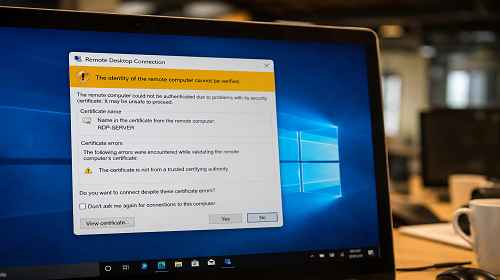
Why Windows Started Showing “Unverified Source” Warnings in RDP Connections After the May 2026 Updates
Short description: After the May 2026 Windows updates, many users started seeing “Unverified source” and certificate warnings during Remote Desktop connections. Here’s what changed, why it happens, and how to fix it.
In May 2026, Microsoft released new security updates for Windows and Remote Desktop services. Shortly after installing these updates, many users began seeing warnings such as “The identity of the remote computer cannot be verified” or “Untrusted certificate” when connecting through RDP.
The issue mainly affected companies using older Windows Server versions, self-signed certificates, or Remote Desktop connections through VPN. In most cases, the server itself still works correctly, but Windows now performs much stricter certificate and encryption validation.
When the problem started appearing
- After installing May 2026 updates for Windows 10 and Windows 11
- After updating Windows Server
- After changes to RDP security policies
- When using older Remote Desktop servers
- During VPN or RDP Gateway connections
What Microsoft changed
The main reason behind the warnings is stricter validation of RDP certificates and encrypted connections.
Windows now checks:
- SSL/TLS certificates
- server names
- certificate expiration dates
- encryption algorithms
- legacy TLS 1.0 and TLS 1.1 protocols
- RDP Gateway authenticity
Because of this, even working RDP servers may now trigger security warnings.
What inconveniences users experienced
- Users became afraid to connect to servers
- Additional confirmation windows started appearing
- Automatic RDP connections stopped working correctly
- Saved RDP files failed in some environments
- Older Windows Server 2012/2016 systems began showing certificate errors
- IT administrators received significantly more support requests
The fastest way to connect
- Click “More choices” or “Show details” in the warning window
- Verify the server name
- Select “Connect anyway”
- Save the connection settings
This method works in most cases if the server actually belongs to your company and the issue is only related to the certificate.
Main causes of the warning
In most situations, this is not caused by malware or hacking attempts. The issue comes from outdated RDP configurations combined with new Windows security requirements.
Cause 1 — Self-signed certificate
Many servers use automatically generated Windows RDP certificates. After the updates, Windows started treating these certificates as less trustworthy.
This commonly affects:
- Windows Server 2012
- Windows Server 2016
- older RDP Gateway servers
- home or small office RDP servers
Cause 2 — Server name mismatch
If users connect using an IP address while the certificate was issued for a hostname, Windows will display a warning.
Example:
- The certificate was issued for srv.company.local
- But the user connects to 192.168.1.10
After the May 2026 updates, Windows began checking this much more aggressively.
Cause 3 — Old TLS versions
Some older servers still use TLS 1.0 or TLS 1.1.
The new updates started to:
- block outdated protocols
- display additional warnings
- sometimes completely prevent the connection
Method 1 — Update Windows Server
- Install all latest Windows Server updates
- Restart the server
- Test the RDP connection
- Regenerate the RDP certificate
In many cases, this completely resolves the problem.
Method 2 — Create a new certificate
- Open certlm.msc
- Go to Remote Desktop → Certificates
- Delete the old certificate
- Restart the RDP service
- Windows will automatically generate a new certificate
This often removes the warning after the 2026 updates.
Method 3 — Use the correct server name
- Avoid connecting directly via IP address
- Use the server DNS hostname
- Verify that the hostname matches the certificate
- Update saved RDP files for users
This is the best long-term solution for business environments.
Useful admin trick
After the May 2026 updates, clearing the RDP certificate cache on the client computer often fixes the issue.
- Remove old entries from Credential Manager
- Clear the Remote Desktop cache
- Create a new RDP connection
In many cases, the warning disappears immediately afterward.
Helpful tips
- Do not ignore warnings if the server is unfamiliar
- Use TLS 1.2 whenever possible
- Do not expose RDP directly to the Internet
- Use VPN together with RDP
- Keep older Windows Server systems updated
Common mistakes
One common mistake is completely disabling certificate validation. This lowers server security and increases risks.
Another mistake is continuing to use outdated Windows Server installations without security updates.
Frequently asked questions
Is this a virus?
Usually not. In most cases, this is simply caused by the new Windows security checks.
Can the warning be removed?
Yes. Proper certificate configuration and correct server naming usually solve the problem.
Why did everything work before?
Microsoft strengthened RDP security validation in May 2026.
Is it safe to click “Connect anyway”?
If this is your own server, usually yes. If the server is unknown, you should verify it first.
Will reinstalling RDP fix the issue?
Usually the problem is not related to the RDP client itself but to the server certificate.
Conclusion
The May 2026 Windows updates significantly increased Remote Desktop security checks. As a result, many users started seeing “Unverified source” and certificate warnings during RDP connections. In most situations, the issue can be fixed by updating the server, using a proper certificate, and connecting through a DNS hostname instead of an IP address.
Read also
Bookmarks
If this article was useful, bookmark our blog
about Windows and RDP.
Press Ctrl + D