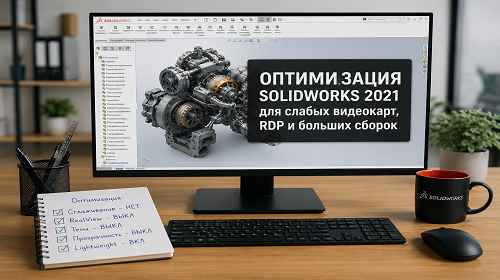
SOLIDWORKS 2021 Optimization for Weak GPUs, RDP and Large Assemblies
Short description: A detailed guide to optimizing SOLIDWORKS 2021 for lower GPU usage, faster large assembly performance and smoother work through Remote Desktop.
SOLIDWORKS 2021 can heavily load the GPU even on powerful computers. This becomes especially noticeable when working through RDP, using large assemblies or running the software on standard GeForce cards and Intel UHD graphics. A common situation is when the CPU is loaded only by 20–30%, RAM still has free space, but the GPU constantly works at 100%.
In most cases the issue is not caused by a weak processor or lack of memory. The main problem is usually related to SOLIDWORKS graphical effects and OpenGL rendering. Correct optimization settings can noticeably reduce GPU load, improve assembly loading speed and remove lag while rotating models.
When You Need This Optimization
- SOLIDWORKS freezes while rotating models
- The GPU constantly works at 90–100%
- Large assemblies open very slowly
- The program becomes unstable through RDP
- Model movement feels choppy even on a good PC
The Fastest Method (1 Minute)
- Open Tools → Options → System Options → Display
- In the Anti-Aliasing section select None
- Disable:
- Dynamic highlight from graphics view
- Shaded face highlighting
- Display shaded planes
- Go to the Assemblies section
- Enable Automatically load components lightweight
- Set Rebuild assembly on load to Never
- Restart SOLIDWORKS
For many systems this is already enough to significantly reduce GPU usage.
Main Optimization Methods
Several features create heavy GPU load in SOLIDWORKS: anti-aliasing, transparency effects, dynamic highlighting and full component loading. The best result comes from combining all optimization methods together.
Method 1 — Display Settings Optimization
This section contains the most important GPU-related settings.
- Open:
Tools → Options → System Options → Display - In the Anti-Aliasing section select:
None - Disable:
Shaded face highlighting - Disable:
Dynamic highlight from graphics view - Turn off:
Display surface borders in different colors - Disable:
Display shaded planes - Turn off:
Display notes flat to screen - Disable:
Display reference coordinate system - Turn off:
Display array information tips - In:
Edge display in shaded modetry using: Wireframe
After these changes SOLIDWORKS usually becomes much smoother while rotating models.
What Creates the Biggest GPU Load
| Feature | GPU Load |
|---|---|
| Anti-Aliasing | Very High |
| RealView | Very High |
| Transparency | High |
| Dynamic Highlight | Medium |
| Shadows | High |
| Wireframe Mode | Very Low |
Method 2 — Large Assembly Optimization
For large assemblies the lightweight mode is one of the most important settings.
- Open:
Tools → Options → System Options → Assemblies - Enable:
Automatically load components lightweight - Set:
Rebuild assembly on loadto: Never - Set:
Resolve lightweight componentsto: Prompt - Set:
Check out-of-date lightweight componentsto: Do not check - Move the:
Level of detailslider toward: Less detail (faster)
These settings help assemblies load much faster and reduce GPU stress during work.
Method 3 — Disable Transparency and Heavy Effects
Transparency is one of the heaviest visual effects inside SOLIDWORKS.
- In the Assemblies section find:
- High quality for normal view
- High quality for dynamic view
- Disable both options
- Turn off:
- RealView Graphics
- Shadows
- Ambient Occlusion
- Transparency Effects
This is especially important for laptops and RDP environments.
Useful RDP Optimization Trick
SOLIDWORKS works much worse with OpenGL through Remote Desktop. If the software runs smoothly locally but lags remotely, the problem is almost always related to graphical rendering.
For RDP sessions it is better to use:
- Wireframe mode
- Minimal transparency
- No RealView
- No anti-aliasing
- Lightweight components
Sometimes these changes improve performance more than upgrading the GPU.
Useful Tips
- Always restart SOLIDWORKS after changing graphics settings
- Use SSD storage for large assemblies
- Quadro cards usually work better with SOLIDWORKS than GeForce
- Avoid using RealView through RDP
- Lightweight Components provide one of the biggest performance improvements
Common Mistakes
One of the most common mistakes is upgrading RAM while the real bottleneck is the GPU. Another issue is leaving RealView, shadows and anti-aliasing enabled during RDP sessions.
Another common problem is using:
Resolve lightweight components → Always.
This setting forces SOLIDWORKS to fully load all components again, removing the advantages of lightweight mode.
Frequently Asked Questions
Why is the GPU at 100% while CPU usage is low?
SOLIDWORKS heavily uses OpenGL rendering and graphical effects that mainly load the GPU instead of the CPU.
Will adding more RAM help?
Only if the system is running out of memory. If the GPU is already overloaded, the main issue is graphics rendering.
What works better with SOLIDWORKS: GeForce or Quadro?
Professional Quadro cards usually provide better stability and compatibility with SOLIDWORKS.
Should I disable RealView?
Yes, especially when working through RDP or using weaker graphics cards.
Why does SOLIDWORKS lag more through RDP?
Remote Desktop limits or poorly handles some OpenGL functions used by SOLIDWORKS.
Conclusion
The best SOLIDWORKS 2021 optimization result comes from combining multiple settings: disabling anti-aliasing, RealView and transparency while using lightweight components. For weak GPUs, laptops and RDP environments this can dramatically improve performance without upgrading the computer.
Read Also
Bookmarks
If this article was useful, add our blog
about Windows software and PC optimization
to your bookmarks.
Press Ctrl + D