How to Change an IP Address on a Computer or Laptop
Short description: A detailed guide explaining how to change your IP address using VPN services, Windows settings, Android devices, and command-line tools. Step-by-step instructions for Windows 10, Windows 11, and mobile devices with practical tips and troubleshooting advice.
An IP address is a unique identifier assigned to your device on the internet or local network. Sometimes users need to change their IP address to improve privacy, bypass geographic restrictions, fix connection problems, or access services available only in certain regions. Fortunately, there are several ways to do it — from using a VPN to manually editing network settings.
In this guide, you’ll learn the most reliable and practical methods for changing an IP address on Windows computers, laptops, and Android smartphones.
Why You Might Need to Change Your IP Address
Websites and online services use your IP address to determine your approximate location and track network activity. In some situations, this may lead to blocked content, limited access to services, or connection issues.
Changing your IP address can help if:
- you want to hide your real location online;
- certain websites or services are unavailable in your country;
- your network has IP conflicts or connection errors;
- your ISP limits access or speed for specific services;
- you need more privacy while browsing the internet;
- you want to troubleshoot internet connection problems.
The easiest and safest solution is usually a VPN because it changes your IP address and encrypts your traffic at the same time.
How to Change an IP Address Using a VPN
A VPN is the fastest and most beginner-friendly method. Once connected, your internet traffic is routed through a remote server, and websites will see a different IP address instead of your real one.
- Choose a reliable VPN provider such as NordVPN, Surfshark, Proton VPN, or ExpressVPN.
- Visit the provider’s official website and download the application for your operating system.
- Install the VPN software on your computer or laptop.
- Create an account or sign in with your existing credentials.
- Select a server location or country from the available list.
- Click the connect button and wait for the VPN connection to become active.
After connecting, your public IP address will automatically change.
How to Manually Change an IP Address in Windows 10
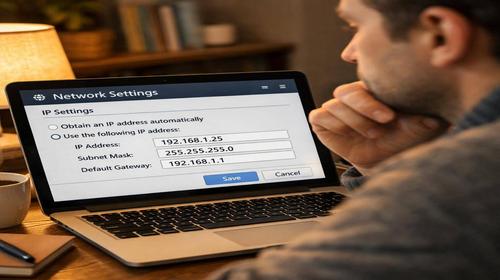
Windows 10 allows you to manually assign a static IP address without additional software. This method is often used in home networks, offices, or when configuring devices manually.
- Open the Start menu and go to Settings.
- Select Network & Internet.
- Open your active Wi-Fi or Ethernet connection.
- Scroll to the IP settings section and click Edit.
- Change the configuration from Automatic to Manual.
- Enable IPv4.
- Enter a new IP address, for example 192.168.1.120.
- Enter the subnet mask and default gateway.
- Add DNS servers such as 8.8.8.8 and 8.8.4.4.
- Save the settings.
Windows will immediately start using the new IP address.
How to Change an IP Address in Windows 11
The interface in Windows 11 looks slightly different, but the process is very similar.
- Open Settings from the Start menu.
- Go to Network & Internet.
- Open Advanced network settings.
- Locate the IP configuration section and click Edit.
- Select Manual configuration mode.
- Enable IPv4.
- Enter the new IP address, gateway, and DNS values.
- Save the changes.
The new network settings are usually applied instantly without restarting the computer.
How to Change an IP Address on Android
Android smartphones also allow manual IP configuration or VPN-based IP switching.
- Open the Settings app on your Android device.
- Go to the Wi-Fi section.
- Press and hold your active Wi-Fi network.
- Select network management or advanced settings.
- Open IP configuration options.
- Change DHCP to Static.
- Enter the new IP address and DNS settings.
- Save the configuration.
If you want a simpler option, install a VPN app for Android. The app will automatically assign a different IP address after connection.
Changing an IP Address by Restarting the Router
Many internet providers use dynamic IP addresses. In that case, restarting the router may assign a completely new public IP address.
- Disconnect the router from power.
- Wait for 5–10 minutes.
- Reconnect the router.
- Wait for the internet connection to restore.
Once the router reconnects to your ISP, a new IP address may be assigned automatically.
This method depends on your provider’s network configuration, so it does not always work.
How to Change an IP Address Using Command Prompt
Advanced users often prefer command-line tools because they are faster than navigating through Windows settings.
- Press Windows + R on the keyboard.
- Type cmd and press Enter.
- In the command window, enter:
ipconfig /release
This command releases your current IP address.
Then type:
ipconfig /renew
Windows will request a new IP address from the DHCP server.
This method is useful when troubleshooting network problems or refreshing a broken internet connection.
Useful Tips Before Changing an IP Address
- Write down your old network settings before making changes.
- Never assign a random IP address without checking whether it is already in use.
- Use reliable public DNS servers such as Google DNS or Cloudflare DNS.
- If the internet stops working after manual changes, switch back to automatic DHCP configuration.
- VPN services are safer because they also encrypt your internet traffic.
- In office or corporate networks, always ask the system administrator before changing IP settings.
- Some programs may require restarting after network configuration changes.
- For the best VPN speed, choose servers located close to your region.
Common Mistakes When Changing an IP Address
One of the most common mistakes is assigning an IP address already used by another device on the network. This causes an IP conflict and may disconnect devices from the internet.
Users also frequently enter incorrect DNS or gateway values, which prevents websites from loading properly.
Another issue is using random free VPN applications. Some of them are unstable, slow, or collect user data.
If you are unsure about manual network settings, using a trusted VPN is usually the safest option.
How to Check Whether Your IP Address Changed
After modifying network settings, you should confirm that the new IP address is active.
In Windows, open Command Prompt and type:
ipconfig
Look for the IPv4 Address field to see your current local IP address.
You can also visit an IP checking website in your browser. If the displayed location or IP address changed, everything is working correctly.
Frequently Asked Questions
Can I change my IP address without a VPN?
Yes. You can manually configure network settings or restart your router to receive a new IP address.
Is changing an IP address safe?
Yes, as long as you use correct network settings and trusted VPN services.
Does a VPN slow down internet speed?
A slight speed reduction is possible because traffic is encrypted, but modern VPN providers are usually very fast.
Does this work on laptops?
Yes. The instructions are the same for desktop PCs and laptops.
Do I need to restart the computer?
Usually not, although restarting may help refresh network services in some cases.
Why did the internet stop working after changing the IP?
This usually happens because of incorrect DNS settings, gateway configuration, or an IP conflict.
How do I switch back to automatic IP configuration?
Enable DHCP or Automatic IP assignment in your network settings.
Can changing the IP address bypass website restrictions?
Yes. VPN services are especially effective for bypassing regional blocks and restrictions.
What is better: VPN or manual IP configuration?
VPN is easier, safer, and more convenient for most users. Manual configuration is mainly useful in local or business networks.
Read also
Bookmarks
If this article was useful, bookmark our blog
about VPN and network settings.
Press Ctrl + D