Free Fire: Complete Settings and Optimization Guide
Short description: Complete Free Fire settings guide for Windows emulators: best graphics options, FPS optimization, control setup, and Free Fire error fixes. Step-by-step instructions for beginners and advanced players.
When this problem happens
- Free Fire lags on Windows emulators because of poor graphics settings.
- Network errors prevent login through Wi-Fi or mobile Internet.
- Low FPS in Free Fire on weak PCs or laptops.
- Uncomfortable controls for 2–4 finger gameplay.
- Free Fire crashes or freezes during loading.
Step-by-step guide
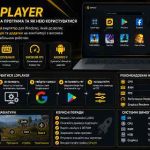
- Install the best emulator for Free Fire on Windows. Download BlueStacks or LDPlayer from the official website. Install the emulator and sign in to Google Play. Search for Free Fire and install the latest version. Set emulator resolution to 1920×1080, allocate 4 GB RAM and 4 CPU cores, then enable High Performance mode. Make sure at least 5 GB of free storage is available.
- Use optimal Free Fire graphics settings. Open Settings > Display inside the game. Set Graphics to Smooth or Ultra depending on PC performance. Enable High FPS mode if FPS remains stable. Disable Shadows and Auto Scale. Set Visual Effects to Classic. Use the Ocean filter for better visibility. Test FPS in training mode and keep performance above 60 FPS.
- Configure controls for 3–4 finger gameplay. Open Controls and select Custom HUD. Place Fire buttons on the right side, Jump in the upper corner, and Crouch below. Set Scope Size and Drag Size to 200%. Enable Aim Assist and Quick Weapon Switch. In BlueStacks press Ctrl + Shift + A to customize keyboard bindings such as WASD movement and mouse aiming.
- Fix Free Fire errors and network problems. For Network Error switch from Wi-Fi to Ethernet. Clear cache inside emulator settings: Apps > Free Fire > Clear Cache. Restart the emulator using CMD command taskkill /f /im HD-Player.exe. If login fails, sign out and back into your Google or Facebook account. Update NVIDIA or AMD graphics drivers to the latest version.
- Check performance and optimize Windows. Launch Free Fire and enable the FPS counter. If FPS drops below 50, reduce graphics settings to Smooth. In Task Manager set emulator priority to High. Disable unnecessary startup services using msconfig. The final result should be stable 60 FPS gameplay without lag.
Useful tips
- Use a wired gaming mouse with 800 DPI for better aim precision.
- Bind keys like Space for jump and Ctrl for crouch.
- Update Free Fire weekly for performance improvements.
- For low-end PCs, NoxPlayer with 2 GB RAM may work better.
- Record matches to analyze aiming and control mistakes.
Common Free Fire mistakes
Many players enable Ultra graphics without checking FPS stability, causing overheating and lag. Another common issue is unstable Wi-Fi, which increases ping and network errors. Some users never clear emulator cache, leading to crashes after updates. VPN usage may also trigger account restrictions or bans.
Frequently asked questions
Does this work on other Windows versions?
Yes, this guide works on Windows 10 and Windows 11. Windows 7 users may prefer LDPlayer.
Will the emulator affect PC performance?
BlueStacks uses 4–6 GB RAM, so close browsers and unnecessary apps while gaming.
Does this work on laptops?
Yes, but keep the laptop connected to power and enable High Performance mode.
Should I restart the PC after changes?
Yes, restarting helps apply cache cleanup and performance changes correctly.
Should I uninstall the old Free Fire version?
Yes, reinstalling prevents data conflicts and corrupted files.
Can Windows updates cause emulator problems?
Yes, some updates temporarily affect emulator compatibility.
How can I check if the issue is fixed?
Start a match and verify stable FPS above 60 with no crashes or freezes.
Can I use older Free Fire versions?
No, outdated versions may fail to connect to current game servers.
What should I do if the issue returns?
Clear cache again, check Internet stability, and update graphics drivers.
Conclusion
This complete Free Fire optimization guide helps improve FPS, controls, and overall emulator performance on Windows. Correct graphics settings, stable Internet, and proper cache management eliminate most Free Fire issues and provide smooth gameplay without lag.