How to Choose an External SSD: A Practical Guide Without the Marketing Noise
Short description: A clear, practical guide on how to choose an external SSD for backups, games, large files, video editing, everyday storage, and work on the go. We explain SSD speed, USB-C, portable storage, the difference between an external SSD and a USB flash drive, and the mistakes that make people waste money on slow drives.
The usual story is simple: the laptop is full, Windows keeps warning that there is no free space left, and deleting files feels risky because “maybe I will need this later.” Someone pulls an old 16 GB USB flash drive from a drawer, tries to copy a few large folders, and suddenly sees 5 MB/s, a frozen File Explorer window, and the feeling that the computer has travelled back to 2010.
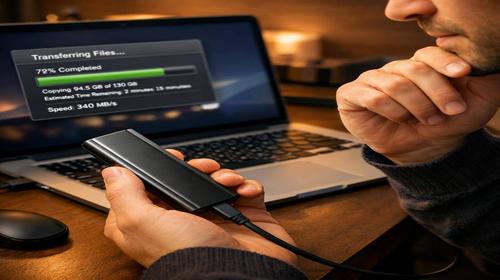
Another person buys the first discounted “external SSD” they see online. The box promises impressive speeds, the design looks modern, and the price seems too good to ignore. Then the first real copy starts: the first few gigabytes fly, the drive gets warm, and the write speed drops to the level of a cheap flash drive. That is when the advertising numbers stop looking so convincing.
To avoid these mistakes, it is worth understanding how to choose an external SSD for your actual tasks: backups, games, video editing, moving large files, working directly from the drive, or simply keeping a reliable portable storage device in your bag. No unnecessary theory here — only the details that matter in real use and the small technical traps that shops rarely explain properly.
When an External SSD Makes Sense
An external SSD is not always the best answer. Sometimes a cheaper external hard drive is more logical. Sometimes even a regular USB flash drive is enough. The right choice depends on how often you use the drive, how large your files are, and whether you plan to work directly from it.
An external SSD is usually worth buying in these situations:
- You work with large files every day. Video editing, RAW photos, 4K footage, design projects, archives, virtual machines, large software repositories, and CAD files can easily take tens or hundreds of gigabytes. A slow USB flash drive becomes painful very quickly in this kind of workflow.
- You want to store and run games from external storage. Modern game libraries from Steam, Epic Games, EA, Ubisoft, and Xbox can fill a laptop SSD in no time. A fast external SSD lets you keep a separate game library without constantly deleting and reinstalling titles.
- You often move hundreds of gigabytes between computers. Copying 200–300 GB from a laptop to a desktop, moving client files, or preparing a system backup before reinstalling Windows is much easier when the drive can hold stable write speed.
- Your laptop has a small internal SSD. Many office and budget laptops still come with 256 GB or 512 GB of storage. An external SSD can become a practical working disk for projects, media, installers, and temporary archives.
- You need fast backups. Compared with an external HDD, an SSD is quieter, more compact, and less sensitive to physical shock while working. It costs more per terabyte, but the backup process is much faster and more comfortable.
There are also cases where an external SSD is not necessary. If you only need a “cold archive” for movies, old photos, and backups that you open once every few months, a large external HDD may be a better deal. For small documents that you move once a week, a simple USB flash drive can still do the job.
The Fastest Way to Choose
If you do not want to study every technical detail, use this simple checklist. It will not cover every professional scenario, but it will protect you from the most common bad purchases.
Quick checklist:
- Capacity: choose 500 GB for documents and photos, 1 TB for everyday use, and 2 TB or more for games, video work, backups, and large archives.
- Interface: look for USB 3.2 Gen 2 or USB-C with up to 10 Gbps bandwidth. This is the current sweet spot for most external SSDs.
- Speed: choose a model with at least 500 MB/s read and write speed. For heavier work, 800–1000 MB/s is much more comfortable.
- Brand: avoid unknown “2 TB super SSD” deals with unrealistic numbers and suspiciously low prices. Samsung, Kingston, SanDisk, WD, Crucial, Transcend, and ADATA are usually safer choices.
- Case and protection: if you carry the drive daily, choose a solid body, preferably with shock resistance or a rubberized design.
For most people, the best simple choice is a 1 TB external SSD with USB 3.2 Gen 2, real speed around 1000 MB/s, and a known brand. That already gives a huge upgrade over a USB flash drive and feels much faster than a portable HDD.
Step-by-Step Guide
- Decide what you need the external SSD for.Before buying anything, answer three questions: what will you store, how much space do you really need, and what ports does your computer have?
Typical scenarios:
- Documents, photos, music, and small videos. A 500 GB external SSD is usually enough. It is fast, compact, and more reliable for everyday work than a cheap flash drive.
- Movies, games, system backups, and installers. Start from 1 TB. If you do not want to think about free space every month, 2 TB is a much better long-term choice.
- Video editing, 3D, large project folders, and virtual machines. Choose 2 TB or more. It is also wise to separate your working disk from your backup disk.
Do not buy only the exact size you need today. If your current project folder is already 700 GB, a 1 TB drive will become cramped very quickly. SSDs also work better when they are not filled to the very last gigabyte.
- Check the ports on your laptop or PC.This is where many people make the wrong choice. The external SSD may be fast, but your computer port can limit it.
- USB 2.0 is too slow for a modern external SSD. It can make even a good drive behave like an old flash drive.
- USB 3.0 / USB 3.1 / USB 3.2 Gen 1 usually gives up to about 400–450 MB/s in real use.
- USB 3.2 Gen 2 can deliver around 800–1000 MB/s with a suitable SSD and cable.
- Thunderbolt 3 or Thunderbolt 4 is much faster, but it only makes sense if your laptop supports it and you really need that speed.
Look for markings near the port. “SS”, “SS10”, a Thunderbolt icon, or a proper USB-C port can tell you a lot. If your laptop only has older USB-A ports, you can still use an external SSD, but do not expect the top speed printed on the box.
- Understand the difference between an external SSD and a USB flash drive.Both use flash memory, but they are not the same thing. A real external SSD has a better controller, cache, firmware, and memory management. It is designed for heavier reading and writing.
A USB flash drive is fine for transferring a few documents, a presentation, or some photos. It is not ideal as a daily working drive. Many flash drives start fast for a few seconds and then drop to very low write speeds when the small cache is full.
If you want to run projects, edit files, store games, or keep important data on the device, choose an external SSD. If you only need to move a couple of files once in a while, a USB flash drive is enough.
- Choose the right capacity.Capacity is not only about how much data fits today. It also affects comfort, speed, and how often you will need to clean the drive.
- 500 GB is fine for office files, photos, small backups, and light everyday use.
- 1 TB is the best starting point for most users. It fits games, photos, documents, installers, and several backup folders.
- 2 TB is better for video, large game libraries, creative work, and full system backups.
- 4 TB and more is useful for professional media work, but the price becomes much higher.
A practical rule: if you think you need 1 TB, consider 2 TB. SSDs usually behave better when 20–30% of the space remains free. This helps with write speed and long-term wear.
- Look at real read and write speed, not only advertising numbers.Manufacturers often show “up to 1050 MB/s” or “up to 2000 MB/s”. These numbers are usually measured in ideal conditions. Real speed depends on the port, cable, controller, memory type, temperature, and how long the copy process lasts.
- Read speed affects how quickly files open, games load, and programs start from the drive.
- Write speed matters when copying large folders, exporting video, creating backups, or moving archives.
For normal use, 500 MB/s is already good. For gaming libraries and video projects, 800–1000 MB/s feels much better. Be careful with very cheap models that promise high speed but slow down after the first 10–20 GB. This usually happens because of a small cache or cheaper QLC memory.
- Pay attention to the connection cable.A bad cable can ruin the whole experience. Many users blame the SSD when the real problem is a weak USB cable or a cheap hub.
If the drive supports USB 3.2 Gen 2, use the original cable or a certified cable that supports 10 Gbps. A random charging cable from a phone may only support slow data transfer. The drive will still work, but the speed can be several times lower.
- Choose the right file system.After buying the drive, format it correctly for your devices.
- NTFS is best if you use the drive mainly with Windows. It supports large files and works well with backup software.
- exFAT is the most convenient option if you need both Windows and macOS compatibility.
- APFS is a good choice if the drive will be used only with modern Mac computers.
Do not use FAT32 for modern external SSDs unless an old TV, console, or special device requires it. FAT32 has a 4 GB file size limit, which becomes annoying very quickly.
- Test the drive after purchase.Do not wait until the warranty period becomes a problem. Test the external SSD right away.
- Run a simple speed test with a disk benchmark tool.
- Copy one large folder of 100–200 GB and watch whether speed stays stable.
- Open random files directly from the drive after copying.
- Check whether the drive disconnects, freezes, or becomes too hot.
If a new SSD behaves strangely from the first day, return it or exchange it. Do not trust important backups to a drive that already shows unstable behavior.
Useful Tips
- Do not fill the SSD to 99%. Keep at least 20–30% free space if you use the drive actively. A full SSD can become slower and wear faster.
- Use a proper USB port. If the speed is suspiciously low, try another port. On desktop PCs, rear motherboard ports are often more stable than front panel ports.
- Avoid cheap USB hubs for heavy copying. Hubs can reduce speed, cause disconnects, or create power issues. For large backups, connect the SSD directly to the computer.
- Encrypt sensitive files. If the drive contains client documents, personal photos, work databases, or financial files, use BitLocker, VeraCrypt, or built-in encryption. Portable storage is easy to lose.
- Do not use one external SSD as your only copy. A working SSD and a backup SSD should be separate. If your only drive fails, gets stolen, or is accidentally formatted, there is no second chance.
- Small lifehack: label the cable together with the drive. Many speed problems appear after users replace the original cable with a random USB-C cable. Put a small sticker on the correct cable or keep it in the same case as the SSD.
- Watch the temperature during long transfers. Compact SSDs can heat up and throttle. If you copy hundreds of gigabytes, place the drive on a hard surface instead of a blanket, sofa, or laptop exhaust area.
Common Mistakes
1. Buying a suspiciously cheap “high-speed SSD”
- Symptoms: the product page promises 2000–3000 MB/s, but real speed is closer to 100–150 MB/s after a few gigabytes.
- Reason: weak controller, cheap memory, fake specifications, or a low-quality enclosure.
- Fix: check real reviews of the exact model before buying. Do not rely only on the shop description.
2. Connecting the SSD to USB 2.0
- Symptoms: the drive cannot go above 35–40 MB/s.
- Reason: the SSD is connected to an old port or a slow hub.
- Fix: connect it directly to a USB 3.x port. Look for a blue port, “SS” marking, or USB-C with proper data support.
3. Using an external SSD as the only storage for important files
- Symptoms: the only copy of work files, photos, or backups lives on one portable drive.
- Risk: loss, theft, file system corruption, accidental formatting, or hardware failure.
- Fix: follow a simple backup rule: one working copy, one local backup, and preferably one cloud or off-site copy.
4. Choosing a USB flash drive instead of an SSD for daily work
- Symptoms: slow copying, freezes, disappearing drive, low write speed, and unstable behavior under load.
- Reason: most flash drives are not designed for constant heavy writing.
- Fix: use a real external SSD for active projects and keep the flash drive for small file transfers.
5. Ignoring heat and throttling
- Symptoms: speed starts high, then drops two or three times during a long copy.
- Reason: the controller overheats and reduces speed to protect the drive.
- Fix: choose a model with a decent metal or heat-dissipating case, avoid covering the drive, and give it airflow during heavy transfers.
Frequently Asked Questions
1. What is better for everyday storage: an external SSD or a USB flash drive?
For everyday storage and active work, an external SSD is much better. It is faster, more stable, and designed for larger read and write loads. A USB flash drive is fine for small transfers, but it is not a good replacement for a proper portable SSD.
2. What external SSD speed is enough for normal use?
For documents, photos, backups, and everyday files, 400–500 MB/s is already comfortable. For games, video editing, large archives, and working directly from the drive, 800–1000 MB/s is a better target.
3. Can I run games from an external SSD?
Yes, you can run games from an external SSD if it is connected through USB 3.x, USB-C, or Thunderbolt. Loading times may be slightly slower than on an internal NVMe SSD, but still much faster than on an external HDD.
4. Why is my external SSD slower than advertised?
The most common reasons are a slow USB port, a poor cable, a cheap hub, overheating, or a drive that cannot hold speed after its cache is full. Test the SSD directly through a fast port before blaming the drive.
5. What capacity should I choose for backups?
Check how much data is currently used on your internal drive and add at least 30–50% extra space. For most laptops, 1–2 TB is a comfortable choice. If you want several backup versions, choose a larger SSD or combine an SSD with an external HDD.
6. Is an external SSD reliable for long-term storage?
It can be reliable, but no storage device should be trusted as the only copy. SSDs are good for fast access and active backups, but important data should also exist on another drive or in a secure cloud backup.
7. Should I buy Thunderbolt if my laptop only has USB-C?
Not automatically. USB-C is only a connector shape. It does not always mean Thunderbolt support. If your laptop does not support Thunderbolt, buying a Thunderbolt SSD will not give you Thunderbolt speed.
8. Is exFAT good for an external SSD?
exFAT is a good choice if you move the SSD between Windows and macOS. If you use only Windows, NTFS is usually better. If you use only Mac, APFS may be more suitable.
9. Can I use an external SSD with a TV or game console?
Usually yes, if the device supports USB storage and the chosen file system. For TVs, exFAT is often convenient. For consoles, check the official storage requirements before formatting the drive.
10. What is better: external SSD or external HDD?
An external SSD is better for speed, portability, silence, and shock resistance. An external HDD is better when you need many terabytes for the lowest price. In practice, many users keep an SSD for active work and an HDD for long-term archives.
Related Articles
If you are choosing storage, upgrading a laptop, or thinking about backups and data protection, these sections may also be useful:
- Hard Disk Drive — practical guides about HDDs, storage capacity, archives, and data safety.
- Upgrade — tips for improving laptops and desktop PCs without wasting money on the wrong parts.
- Windows — system settings, storage management, backup tools, and troubleshooting guides.
- Computer — hardware advice for disks, RAM, video cards, power supplies, and common PC problems.
- Internet Security — how to protect files, accounts, backups, and personal data from common threats.
Bookmarks
If this guide helped you choose an external SSD more confidently, add our storage and computer hardware guides to your bookmarks.
Press Ctrl + D