How to Make Your Computer Quieter: From Noisy PC Fix to an Almost Silent Computer
Short description: Learn how to reduce computer noise: from quick software adjustments and dust cleaning to replacing fans, HDDs, and the power supply. Practical steps, common mistakes, fan curve tuning, vibration control, and real ways to move from a noisy PC fix to an almost silent computer without losing performance.
At first, everything seems fine: a new desktop PC or laptop runs almost silently. A year or two later, the quiet background sound turns into humming, whining, rattling, and the feeling that a small aircraft is about to take off under your desk. It becomes especially annoying in the evening, when the room is quiet and the computer fans suddenly start spinning at high speed.
Computer noise is not only irritating. It can disturb concentration, interfere with streaming, spoil microphone recordings, and sometimes point to real cooling problems. If the system is constantly loud, it usually means that something is forcing the fans, hard drive, power supply, or graphics card to work harder than necessary.
In practice, every good noisy PC fix starts with two simple actions: finding the actual source of the noise and deciding whether it needs cleaning, configuration, isolation, or replacement. The good news is that in most cases you can make a computer noticeably quieter without buying expensive new hardware. With a systematic approach, even an ordinary desktop can become close to a silent computer during light work.
When this problem appears and why it matters
Computer noise is not always “normal hardware operation”. In most cases it appears for specific reasons that can be diagnosed and fixed.
- The PC has not been cleaned for a long time, dust blocks the heatsinks and fans must spin faster to cool the components.
- Powerful gaming hardware was installed in a case with weak airflow or budget cooling.
- Old hard drives are clicking, humming, vibrating, or transferring mechanical noise to the case.
- Fan curves in BIOS are configured poorly, so fans spin too fast even when the system is idle.
- The case is thin, cheap, or poorly assembled, causing panels to resonate and amplify vibration.
- Background software keeps the CPU or GPU loaded, even when the user thinks the computer is doing nothing.
Typical symptoms are easy to notice:
- The computer is almost as loud at idle as it is during gaming or rendering.
- You hear a clear whine or humming sound from the graphics card or power supply under load.
- The fans roar during startup and never really slow down afterward.
- The side panel rattles when you touch it lightly.
- The desk or floor vibrates slightly when the PC is running.
- The noise changes when you open a game, start a browser with many tabs, or copy files from an old HDD.
Reducing computer noise is worth the effort for several reasons. Loud fans wear out faster, high temperatures can reduce hardware lifespan, and constant background noise makes working at the desk less comfortable. If you record voice, stream, edit audio, or work in a quiet room, even a small improvement can make a big difference.
A quiet computer does not always mean a very expensive custom build. Often, the biggest improvements come from dust removal, proper fan curves, better airflow, and replacing only the loudest component.
The fastest way to reduce PC noise
If you need to make your computer quieter right now, start with the simplest steps before buying anything.
- Clean the dust. Open the case and remove dust from heatsinks, fans, filters, and air intakes. Dust is one of the most common causes of overheating and excessive fan noise.
- Adjust fan curves in BIOS. Open BIOS or UEFI, find the Fan Control section, and reduce fan speed at low temperatures. A PC should not run case fans at 70–100% while idle.
- Close unnecessary background programs. Open Task Manager and check what is using CPU or GPU resources. Less load means less heat, and less heat means lower fan speed.
- Check the PC position. Do not place the case directly on thick carpet, inside a closed cabinet, or too close to the wall. The case needs fresh air.
- Reduce vibration. Put the case on a rubber mat or a stable soft pad. This can reduce humming transferred to the desk or floor.
In many cases these steps are enough to move from “impossible to sit nearby” to “noticeably quieter”. After that, you can continue with a deeper silent computer setup.
Step-by-step noisy PC fix
Find the source of the noise
Before changing settings or buying new fans, you need to understand what is actually making the noise. Different sounds usually point to different components.
- A steady humming sound from the front or rear of the case often comes from case fans or old HDDs.
- A sharp ramping noise under load usually comes from the CPU cooler or graphics card fans.
- Clicking, scratching, or rhythmic ticking often comes from a mechanical hard drive.
- A high-pitched electrical sound that changes with FPS in games can be GPU coil whine.
- Rattling that disappears when you touch the side panel usually means case vibration or loose screws.
You can briefly stop a case fan for one or two seconds by gently touching the center hub, not the blades. If the sound disappears, you found one source of noise. Do not stop the CPU or GPU fan under heavy load.
Turn off the PC and prepare for cleaning
- Shut down the computer completely.
- Disconnect the power cable.
- Remove the side panel.
- Move the case to a place where dust will not spread around the room.
- Prepare compressed air, a soft brush, and microfiber cloth.
Never clean the inside of a running PC. Also avoid using a regular household vacuum directly on the motherboard, graphics card, or RAM because of static electricity risk.
Inspect the cooling system
- Check the CPU heatsink. If it is packed with dust, the fan will have to spin much faster.
- Inspect front, top, and bottom dust filters.
- Look for cables touching fan blades.
- Check whether hard drives are mounted with vibration-damping rubber parts.
- Look at the airflow direction of the case fans.
At this stage you usually understand whether the main problem is dust, bad airflow, a dying fan, a vibrating HDD, or aggressive fan control.
Clean dust properly
- Use compressed air or an electric air duster.
- Hold fan blades gently while blowing air through them so they do not spin too fast.
- Clean the CPU cooler, graphics card heatsink, power supply grille, case fans, and dust filters.
- If filters are removable, wash them with water, dry them completely, and reinstall them.
- Do not spray liquid cleaners inside the PC case.
After cleaning, many computers immediately become quieter because temperatures drop and fans no longer need to run at high speed.
Configure fan curves in BIOS
Fan curve tuning is one of the most effective ways to make a PC quieter without reducing performance. The goal is simple: low fan speed at low temperatures, gradual increase under moderate load, and strong cooling only when temperatures really require it.
- Restart the computer and enter BIOS or UEFI using Delete, F2, or the key shown during startup.
- Find a section called Fan Control, Hardware Monitor, Q-Fan, Smart Fan, or similar.
- Set 4-pin fans to PWM mode if available.
- Set low fan speed at temperatures below 40°C.
- Use a smooth curve between 40°C and 65°C.
- Allow higher speed above 70°C to prevent overheating.
- Save settings and restart the PC.
A practical fan curve can look like this:
| Temperature | Fan speed | Purpose |
|---|---|---|
| Up to 40°C | 20–30% | Quiet idle operation |
| 40–60°C | 35–55% | Light and medium workloads |
| 60–75°C | 60–80% | Gaming or heavy work |
| Above 75°C | 80–100% | Thermal protection |
If configured correctly, the computer becomes quiet at idle and increases fan speed only when necessary.
Improve cable management
Poor cable management does not only look messy. It can block airflow and force fans to spin faster.
- Use cable ties to keep wires away from fan blades.
- Move large cable bundles behind the motherboard tray if the case allows it.
- Keep the airflow path clear from front intake fans to rear or top exhaust fans.
- Make sure no loose cable touches a fan during operation.
Even a small improvement in airflow can reduce fan speed and temperature.
Check mechanical hard drives
HDDs are among the loudest components in older desktops. They can produce clicking, buzzing, vibration, and low-frequency humming.
- Check whether the hard drive is mounted tightly but not metal-to-metal without damping.
- Use rubber washers or anti-vibration mounts where possible.
- Move the operating system and main programs to an SSD.
- Leave HDDs only for archives, backups, and rarely used files.
- If the HDD makes unusual clicking sounds, back up data immediately.
Moving from HDD to SSD is one of the most noticeable upgrades for both silence and speed.
Reduce case vibration
- Tighten loose screws on side panels and drive cages.
- Add thin rubber or foam strips where panels rattle.
- Use a rubber mat under the case.
- Check that the case stands evenly on all feet.
- Do not place the PC on a thin wooden shelf that amplifies vibration.
Sometimes the loudest part of a PC is not the fan itself, but the vibration it sends into the case or desk.
Replace loud fans
If one fan still rattles, clicks, or roars after cleaning and tuning, its bearing may be worn out. Replacing it is often the best solution.
- Choose 120 mm or 140 mm fans with PWM support.
- Look for fluid dynamic, magnetic, or high-quality rifle bearings.
- Check noise level in dB, not only airflow numbers.
- Prefer fans with anti-vibration pads.
- Use larger fans at lower RPM whenever the case supports them.
A large slow fan is usually quieter than a small fan spinning at high speed.
Upgrade toward an almost silent computer
If you want a truly quiet PC, not just a slightly less noisy one, consider these upgrades:
- SSD instead of HDD. SSDs have no moving parts and are completely silent.
- Semi-passive power supply. Many modern PSUs keep the fan off at low and medium load.
- Large tower CPU cooler. A 120 mm or 140 mm fan at low RPM is usually much quieter than a small stock cooler.
- Graphics card with 0 dB mode. Many GPUs stop their fans completely at idle.
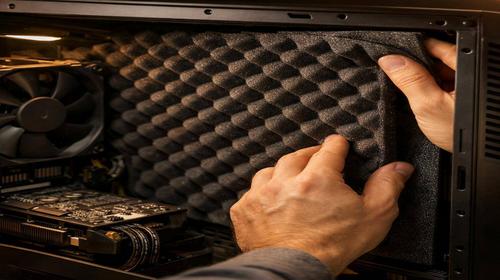
- Sound-dampened case. Cases with thicker panels and acoustic padding reduce overall noise.
- Better airflow layout. A balanced front-to-back airflow path prevents heat buildup.
This approach creates a system that is almost silent during office work, browsing, and light tasks, while still cooling properly under gaming or rendering load.
Check temperatures after noise reduction
The main risk of every noisy PC fix is making the computer quiet but too hot. Always check temperatures after changing fan curves or replacing cooling components.
- Install monitoring tools such as HWiNFO, HWMonitor, or similar software.
- Check CPU, GPU, SSD, and motherboard temperatures at idle.
- Run a game, benchmark, or stress test for 10–15 minutes.
- Watch whether temperatures remain within safe limits.
As a general rule, try to keep the CPU below 80–85°C under sustained load, the GPU below 85–90°C in games, and SSD temperatures preferably below 70°C under heavy use.
Test with the side panel open and closed
A simple test can reveal airflow problems:
- Measure temperature and noise with the side panel closed.
- Open the side panel and repeat the same workload.
- Compare temperatures and noise levels.
If temperatures drop significantly with the panel open, the case has poor airflow. Add or reposition case fans instead of simply lowering fan speeds.
Safety rules during experiments
- Do not run the system with the CPU cooler fan disconnected.
- Do not block ventilation holes with tape or foam.
- Do not set fan curves so low that the system overheats during gaming.
- Do not ignore sudden new noises from the power supply or HDD.
- Do not disassemble a power supply unless you are qualified to do so.
The goal is not silence at any cost. The goal is quiet operation with safe temperatures.
Useful tips
- Clean dust filters regularly. A clogged filter forces fans to work harder.
- If building a new PC, include quiet fans and a good case in the budget from the beginning.
- Try undervolting the CPU or GPU instead of overclocking if you want lower noise.
- Do not place the PC in a closed desk cabinet without ventilation.
- Use software from your motherboard manufacturer if it allows linking case fans to GPU temperature.
- For recording or streaming, move the PC farther from the microphone and use directional mic positioning.
- If noise appears suddenly, do not ignore it. A failing fan or HDD often gives warning signs before complete failure.
A lesser-known trick: on some motherboards, case fans can be controlled not only by CPU temperature but also by system or GPU temperature through vendor software. This helps keep the PC quiet at idle while improving cooling when the graphics card heats up.
Common mistakes
Users often make the PC quieter in the wrong way, which creates new problems.
- Reducing fan speeds too aggressively. The PC becomes quiet at idle, but CPU or GPU temperatures jump too high under load.
- Stopping fans by hand for too long. This may damage the fan and overheat components.
- Blocking ventilation holes. The system gets hotter, fans spin faster, and noise often becomes worse.
- Ignoring HDD vibration. Replacing fans will not help if the loudest sound comes from a vibrating hard drive.
- Installing fans in random directions. Poor airflow makes fans louder while cooling worse.
- Buying only “high airflow” fans. Some fans move a lot of air but are very noisy at normal speeds.
- Using a cheap power supply. Budget PSUs often have loud fans and poor acoustic profiles.
The right balance is simple: quiet, but not hot. A silent computer that overheats is not a successful build.
Frequently Asked Questions
How can I make my computer quieter without replacing hardware?
Start with dust cleaning, fan curve tuning in BIOS, cable management, removing background load, and reducing case vibration. These steps often lower noise significantly without buying new parts.
Why is my PC noisy even when nothing is running?
Fan curves may be too aggressive, dust may block cooling, or background processes may be using CPU or GPU resources. Check Task Manager and system temperatures.
What is usually louder: CPU cooler or case fans?
It depends on the build, but case fans, GPU fans, and old HDDs often create most of the noise. A cheap stock CPU cooler can also be very loud.
Will replacing an HDD with an SSD reduce noise?
Yes. SSDs are silent because they have no moving parts. Replacing a mechanical hard drive can remove humming, clicking, and vibration.
What fans should I buy for a quiet PC?
Choose PWM fans with high-quality bearings, low noise ratings, and anti-vibration pads. Larger 140 mm fans are often quieter than small high-RPM fans.
Is it safe to lower CPU fan speed?
Yes, but only if you test temperatures under load afterward. Do not focus on silence alone; check that the CPU remains within safe limits.
Why is my computer loud only in games?
Games load the CPU and GPU heavily, increasing heat. The cooling system responds by raising fan speeds. This is normal, but excessive noise may indicate dust, poor airflow, or aggressive fan curves.
Can the power supply be the main source of noise?
Yes. Older or budget power supplies can have loud fans. A semi-passive PSU can stay silent during light workloads.
How do I know whether the noise comes from the GPU or case fans?
Run a game or benchmark and listen carefully. You can briefly stop case fans one by one for a second or two. If the noise remains, it may come from the GPU or power supply.
Can a powerful desktop become completely silent?
Fully passive silence is difficult for powerful desktops, but an almost silent computer is realistic with SSD storage, quiet fans, a semi-passive PSU, a GPU with 0 dB mode, and good airflow.
Related Articles
Bookmarks
If this guide helped you reduce PC noise, save it to your bookmarks so you can return to the fan curve, cleaning, and silent computer recommendations later.
Press Ctrl + D to add this page to your bookmarks.