Did You Receive an “I Hacked Your Email” Message? What It Means and What to Do
Short description: Learn how “I hacked your email” scams work, why attackers demand Bitcoin, how fake sender spoofing works, and how to protect your email account quickly.
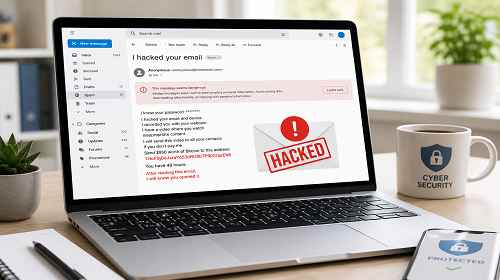
Many users have recently started receiving strange threatening emails. In these messages, scammers claim they hacked your email account, gained access to your webcam, recorded compromising videos, and demand payment in Bitcoin.
In most cases, this is just a mass extortion scam automatically sent to thousands or even millions of people.
The main goal of these emails is simple: create panic and pressure the victim into sending money quickly.
In this article, we will explain:
- how this scam works;
- whether your email was really hacked;
- why the message may appear to come from your own address;
- what you should do immediately;
- how to block similar emails in the future.
When This Happens
- You received an email demanding Bitcoin
- The message says your webcam was hacked
- The sender appears to be your own email address
- The scammer threatens to send videos to your contacts
- You want to check whether your account is secure
Typical Scam Message
- “I am writing to you from your own email”
- “I saw that you opened this message”
- “I recorded a video from your webcam”
- “I will send everything to your friends and boss”
- “Transfer Bitcoin immediately”
These messages are commonly known as:
Sextortion Scam
or simply an email blackmail scam.
Fastest Solution (1 Minute)
- Do not reply to the email.
- Do not send any money.
- Do not open attachments.
- Mark the message as spam.
- Change your email password.
- Enable two-factor authentication.
In most situations, this is enough to solve the problem completely.
Main Solutions
The safest approach is to verify your account security, change your password, enable 2FA, and block future scam emails using filters.
Method 1 — Check If Your Email Was Really Hacked
- Open your email security settings.
- Check active devices and login sessions.
- Log out suspicious sessions.
- Change your password immediately.
- Enable two-factor authentication.
- Review account recovery settings.
If there are no suspicious logins, the email was most likely part of a mass scam campaign.
It is also recommended to use a unique password that is not reused on other websites.
Method 2 — Why the Email Looks Like It Came From You
One of the scariest parts for many users is seeing their own email address in the sender field.
In most cases, this is simply email spoofing.
The scammer forges the “From” field to make the message appear as if it came from your account.
This does NOT automatically mean your mailbox was hacked.
You can usually verify this through email authentication headers:
- SPF
- DKIM
- DMARC
If DMARC fails, the sender was likely spoofed.
Method 3 — Disable Automatic Image Loading
Many scam emails contain hidden tracking pixels. These tiny images notify scammers when the email has been opened.
- Open your email settings.
- Go to mail viewing preferences.
- Disable automatic image loading.
- Save the settings.
This prevents scammers from easily tracking whether you opened the message.
Method 4 — Block These Emails Using Filters
- Open the scam email.
- Click “More” or “…”
- Select “Create Filter”
- Add keywords or sender domains
- Set the action to Delete or Move to Spam
Useful filter keywords include:
- Bitcoin address
- I saw you opened the email
- transfer the same amount
- your life will end today
- I hacked your email
Method 5 — What If the Email Contains Your Old Password?
Sometimes scammers include an old password in the message. This can be frightening, but it usually comes from old leaked databases.
These passwords are often collected from:
- old forums;
- online stores;
- data breaches;
- compromised websites.
This does not necessarily mean your computer is infected right now.
However, you should immediately change any password that still matches your current accounts.
Method 6 — Scan Your Computer for Malware
Most of these emails are fake threats, but running a security scan is still a good idea.
- Update your antivirus software.
- Run a full system scan.
- Check startup programs.
- Remove suspicious software.
- Update Windows and your browser.
This is especially important if you previously opened suspicious attachments or downloaded cracked software.
Useful Tips
- Use different passwords for every website.
- Enable 2FA on important accounts.
- Do not open suspicious ZIP or EXE files.
- Keep Windows updated.
- Do not save sensitive passwords without protection.
Common Mistakes
The biggest mistake is panicking and sending money.
After payment, scammers may continue demanding more money.
Another common mistake is replying to the message, which confirms that your email address is active.
Opening suspicious attachments is also dangerous and can lead to a real infection.
Frequently Asked Questions
Was my email really hacked?
Usually not. Most of these messages are mass scam campaigns.
Why does the message come from my own address?
Because scammers use email spoofing.
Can they really access my webcam?
Only if your computer is infected with malware. In most cases, this is just intimidation.
Should I pay the Bitcoin ransom?
No. Paying only encourages scammers and does not guarantee anything.
Should I reinstall Windows?
Usually no. Changing passwords and scanning your system is normally enough.
Conclusion
“I hacked your email” messages are usually part of large-scale email extortion scams designed to create fear and pressure victims into paying cryptocurrency.
The best defense is staying calm, changing your passwords, enabling two-factor authentication, blocking suspicious emails, and keeping your system secure.
Read Also
Bookmarks
If this article was useful, bookmark our blog about
internet security and email protection.
Press Ctrl + D