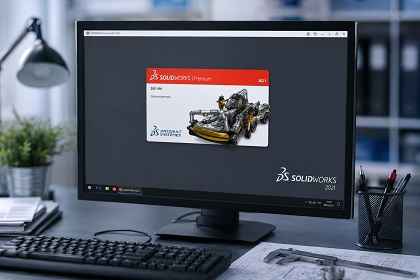
SOLIDWORKS 2021 Freezes on Startup — How to Speed It Up and Fix the Problem
Short description: A detailed guide on how to fix SOLIDWORKS 2021 startup freezes, improve performance, disable unnecessary modules, and optimize the software even for remote desktop usage.
If SOLIDWORKS 2021 freezes during startup, opens very slowly, or starts lagging after a Windows update, the issue is usually related to incorrect settings, video drivers, or unnecessary Add-Ins running in the background.
In this guide, you will learn how to speed up SOLIDWORKS 2021, which settings should be disabled, and what actually affects startup performance and system stability.
When You Need This
- SOLIDWORKS freezes on the loading screen
- The software takes several minutes to open
- The system becomes slow after launching SOLIDWORKS
- CPU or RAM usage becomes too high
- SOLIDWORKS lags over Remote Desktop (RDP)
Fastest Fix (1 Minute)
- Open SOLIDWORKS
- Go to:
Tools → Options → General - Disable:
- automatic opening of recent documents
- SOLIDWORKS news and notifications
- SOLIDWORKS sound effects
- Open:
Tools → Add-Ins - Remove unnecessary modules from the Start Up column
- Restart SOLIDWORKS
For many users, this is enough to eliminate startup freezes and significantly improve loading speed.
Main Ways to Fix SOLIDWORKS Startup Freezes
SOLIDWORKS 2021 startup problems are usually caused by Add-Ins, graphics settings, GPU drivers, or heavy background modules. The methods below provide the best optimization results.
Method 1 — Disable Unnecessary Add-Ins
Add-Ins are one of the most common reasons why SOLIDWORKS starts slowly.
- Open:
Tools → Add-Ins - Disable Start Up for modules you do not use:
- SOLIDWORKS CAM
- Composer
- Visualize
- Routing
- Simulation
- PDM
- Toolbox Browser
- Click OK
- Restart the program
This alone can reduce startup time dramatically.
Method 2 — Optimize General Settings
- Go to:
Tools → Options → General - Change:
- “Open recent documents at startup” → Never
- Recent documents count → 10–20
- Disable:
- SOLIDWORKS sounds
- technical news and welcome notifications
- Restart SOLIDWORKS
This reduces unnecessary background loading during startup.
Method 3 — Graphics and RDP Optimization
If you use SOLIDWORKS through Remote Desktop, graphics effects can cause serious lagging and freezing.
- Open:
Tools → Options → Performance - Disable:
- RealView Graphics
- Shadows
- Transparency
- Ambient Occlusion
- For testing purposes, enable:
Use Software OpenGL - Restart SOLIDWORKS
This often fixes black screens and performance issues over RDP connections.
Method 4 — Advanced SOLIDWORKS RX Troubleshooting
- Launch:
SOLIDWORKS RX - Open:
Safe Modes - Try running SOLIDWORKS:
- without OpenGL
- without settings
- without Add-Ins
- If SOLIDWORKS stops freezing, the problem is most likely related to drivers or one of the enabled modules.
This hidden troubleshooting tool helps identify startup problems without reinstalling the software.
Useful Tips
- Install SOLIDWORKS on an SSD drive
- Add SOLIDWORKS folders to antivirus exclusions
- Avoid using unstable gaming GPU drivers
- Certified NVIDIA drivers usually work better with SOLIDWORKS
- Clean Windows temporary files regularly
Common Mistakes
Many users leave all Add-Ins enabled even if they never use them. This forces SOLIDWORKS to load unnecessary services every time it starts.
Another common issue is running SOLIDWORKS on an HDD instead of an SSD. Large assemblies and drawings load much slower on traditional hard drives.
Startup freezes also frequently appear after automatic GPU driver updates from Windows Update.
Frequently Asked Questions
Why does SOLIDWORKS 2021 freeze during startup?
The most common reasons are unnecessary Add-Ins, problematic GPU drivers, or graphics settings.
What improves SOLIDWORKS performance the most?
Disabling unused Add-Ins and using an SSD drive provide the biggest performance improvements.
Can SOLIDWORKS run over Remote Desktop?
Yes, but it is recommended to disable graphics effects and enable Software OpenGL.
Will reinstalling SOLIDWORKS fix the issue?
Not always. In many cases, the problem is caused by settings or drivers rather than the installation itself.
What should I do if SOLIDWORKS freezes on the splash screen?
Try launching the software through SOLIDWORKS RX Safe Mode.
Conclusion
If SOLIDWORKS 2021 freezes on startup, you can usually fix the issue without reinstalling the software. The most effective solution is disabling unnecessary Add-Ins, optimizing graphics settings, and reducing background startup processes. For RDP environments and weaker PCs, disabling RealView and using Software OpenGL can significantly improve stability.
Read Also
Bookmarks
If this article was useful for you, bookmark our blog about
computer software and Windows optimization.
Press Ctrl + D