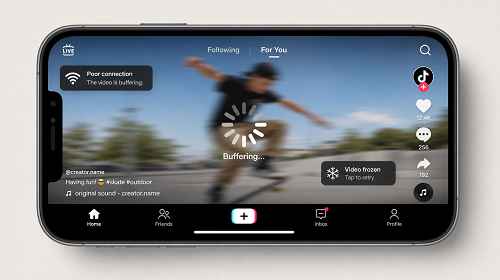
TikTok Lagging — How to Fix Freezing, Slow Loading and Video Playback Problems
Short description: Is TikTok freezing, loading slowly or not playing videos properly? Here are practical methods that actually help on Android and iPhone: clearing cache, checking your Internet connection, disabling VPN, optimizing memory usage and reinstalling the app.
TikTok performance issues often appear after system updates, unstable Wi-Fi connections, overloaded cache files or too many background processes. Even powerful smartphones can start lagging when TikTok runs alongside games, browsers or video editing apps.
When the problem usually appears
The most common symptoms include:
- videos loading very slowly or freezing during playback;
- the For You page not refreshing;
- TikTok crashing immediately after launch;
- the interface responding with delays or stuttering;
- the app becoming unstable after an Android or iPhone update;
- comments or messages not loading;
- the phone overheating while using TikTok.
In most cases, the issue is not caused by TikTok itself but by cache files, Internet problems, lack of RAM or overloaded background services.
The fastest solution
For most users, a quick network reset and cache cleanup solves the issue:
- Completely close TikTok from the recent apps list.
- Enable Airplane Mode for about 10 seconds.
- Disable Airplane Mode and reopen TikTok.
- If the lag remains, clear the app cache.
- Restart your smartphone.
In many situations, this immediately removes freezes and video playback stuttering.
Step-by-step guide
-
Check your Internet connection.
Switch between Wi-Fi and mobile data. If TikTok only works properly on mobile Internet, the issue may be related to your router or DNS settings. -
Clear the TikTok cache.
On Android open:- Settings → Apps → TikTok → Storage → Clear Cache.
On iPhone, reinstalling the app is sometimes necessary because iOS does not always allow separate cache cleanup.
-
Check available storage space.
If your phone has less than 1 GB of free space left, TikTok may start running slowly. This becomes especially noticeable when temporary video files accumulate. -
Update the app.
Older TikTok versions may become unstable after Android, iOS or server-side changes. -
Restart your smartphone.
After long uptime, background processes consume RAM and reduce TikTok performance.
Useful tips and hidden tricks
- Disable VPN if TikTok connects slowly or videos take too long to load.
- Do not run TikTok together with heavy games or video editors because they consume a large amount of RAM.
-
On weaker Android phones, disabling battery optimization for TikTok may help:
- Settings → Battery → Unrestricted.
- After major Android updates, manually clearing the TikTok cache is recommended even if the app seems to work normally.
-
A lesser-known trick: if TikTok only lags during evening hours on Wi-Fi, try changing your DNS to:
- 1.1.1.1
- 8.8.8.8
This can sometimes improve video loading speed.
- If your smartphone overheats while using TikTok, reduce screen brightness and disable automatic HD video playback.
Common user mistakes
Mistake 1 — reinstalling TikTok immediately
Many users delete the app before checking their router, VPN or Internet connection.
Mistake 2 — clearing only RAM
Closing apps does not remove TikTok cache files, so the lag quickly returns.
Mistake 3 — ignoring updates
An outdated TikTok version may become unstable after server-side changes.
Mistake 4 — almost full phone storage
When storage space is nearly full, TikTok may lag even on expensive smartphones.
Frequently Asked Questions
Why does TikTok lag only on Wi-Fi?
Usually the issue is related to the router, DNS settings or an overloaded home network.
What should I do if TikTok crashes right after launch?
Clear the cache, update the app and restart your phone. If that does not help, reinstall TikTok.
Why did TikTok start lagging after an Android update?
After system updates, old temporary files may conflict with new Android components.
Does RAM affect TikTok performance?
Yes. If too many apps are open simultaneously, TikTok may slow down or close in the background.
Does clearing cache really help?
Yes. It is one of the most effective ways to fix freezing and loading problems.
Why does TikTok overheat my phone?
Video playback heavily uses CPU, GPU and network resources. This is especially noticeable on older devices.
Can a VPN slow down TikTok?
Yes. Some VPN servers significantly increase latency and reduce video loading speed.
Read also
Bookmarks
If this article was helpful, bookmark our blog
about software and computer technologies.
Press Ctrl + D