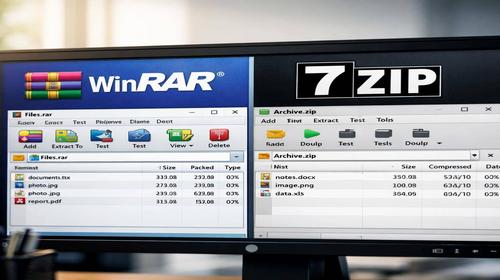
WinRAR vs 7-Zip: which is better for file archiving in Windows
Short description: Detailed comparison of WinRAR vs 7-Zip: speed, compression ratio, supported formats, and security. Find out which is better WinRAR or 7-Zip for optimizing archives in Windows.
When this task appears
- You need to quickly compress large files such as videos or audio to save disk space.
- Archives take too much space due to poor compression efficiency.
- Slow performance when working with archives on low-end PCs.
- Your current archiver does not support formats like RAR or 7z.
- You are looking for a free solution without license reminders.
Step-by-step instruction
- Install WinRAR and 7-Zip for comparison. Download 7-Zip from its official website – it is free and open-source. WinRAR is available as a trial version. Install both programs into C:\Program Files and enable integration with Windows Explorer. After installation, check the right-click context menu.
- Configure interface and performance. In 7-Zip, open Tools – Options and enable shell integration. In WinRAR, go to Settings and associate file types like ZIP and RAR. Test both tools using a sample file around 100 MB. You can also use command line: 7z a archive.7z file.txt or rar a archive.rar file.txt.
- Test compression speed. WinRAR is generally faster when working with ZIP archives and office files. 7-Zip performs better on large files such as videos. Use LZMA2 in 7-Zip to take advantage of multi-core processors.
- Compare compression ratio and formats. 7-Zip offers better compression using the 7z format and supports many formats like ZIP, TAR, and GZIP. WinRAR performs well with the RAR format and offers stable speed. For maximum compression, use -mx=9 in 7-Zip or Ultra mode in WinRAR.
- Check security and recovery features. Both tools support AES-256 encryption. WinRAR includes a recovery record feature for damaged archives. Always use strong passwords and keep software updated.
Useful tips
- Use 7-Zip for maximum compression on large files.
- WinRAR is more user-friendly for beginners.
- Enable multi-threading in 7-Zip for better performance.
- Keep both programs updated for security and stability.
- Test different formats depending on your file type.
Common program mistakes
Many users ignore WinRAR license reminders after the trial period. If this is annoying, switch to 7-Zip. A common mistake is using weak passwords, which reduces archive security. Users also try to compress already compressed files like videos, which gives little benefit. Avoid outdated versions and clean temporary system files regularly.
Frequently asked questions:
Does it work on other Windows versions?
Yes, both tools support Windows 7, 8, 10, and 11.
Does it affect computer performance?
7-Zip uses fewer system resources, while WinRAR is generally faster.
Does it work on laptops?
Yes, both tools work perfectly on laptops.
Do I need to restart the computer?
No, changes are applied instantly.
Should I remove old versions before installing?
It is recommended to avoid conflicts.
Can Windows updates cause issues?
Sometimes you may need to reconfigure integration after updates.
How to check if everything works?
Create a test archive and compare size and speed.
Can I use older versions?
Not recommended due to security risks.
What if the problem appears again?
Reinstall the program and clean system registry if needed.
Conclusion
In the comparison WinRAR vs 7-Zip, there is no absolute winner. Which is better WinRAR or 7-Zip depends on your needs. 7-Zip stands out as a free solution with better compression, while WinRAR offers higher speed and ease of use.
Read also
If this article was useful, bookmark our blog
about computers.
Quick way: press Ctrl + D to save this page.