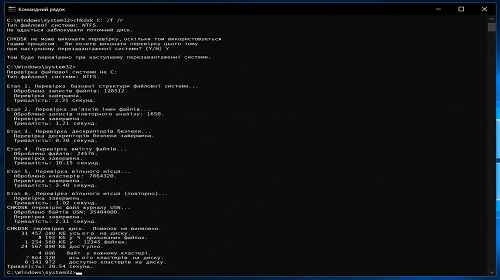
How to Use CHKDSK in Windows
Short description: Learn how to use CHKDSK in Windows to check HDD and SSD drives. Discover how to scan for file system errors, detect bad sectors, and repair storage problems using the Windows command line.
Windows includes a built-in utility called CHKDSK that allows users to scan storage drives for file system errors and disk problems. This command has existed for many years and remains one of the most effective ways to diagnose storage devices without installing third-party software.
CHKDSK helps detect damaged sectors, repair logical disk errors, and analyze the stability of NTFS or FAT32 file systems.
When you should use CHKDSK
- Windows works slowly.
- Your computer freezes.
- Disk errors appear.
- Files stop opening correctly.
- After an unexpected shutdown.
- You suspect bad sectors.
- The drive makes unusual noises.
- Windows asks to scan the disk.
What is CHKDSK?
CHKDSK (Check Disk) is a built-in Windows command designed to scan drives for file system errors and damaged sectors.
The tool works through Command Prompt and supports HDD, SSD, USB drives, and memory cards.
What CHKDSK can do
- Check file systems.
- Repair logical errors.
- Scan for bad sectors.
- Recover readable data.
- Check the Windows system drive.
- Analyze storage stability.
How to launch CHKDSK
- Open the Start menu.
- Type CMD.
- Run Command Prompt as Administrator.
- Enter the required CHKDSK command.
Basic CHKDSK command
The simplest command is:
chkdsk C:
This checks drive C without fixing errors.
How to repair disk errors
To automatically repair file system problems, use:
chkdsk C: /f
The /f parameter tells Windows to automatically repair detected file system errors.
How to scan for bad sectors
To search for damaged sectors, use:
chkdsk C: /r
The /r parameter scans for bad sectors and attempts to recover readable information from damaged areas of the disk.
The scan may take a very long time, especially on large HDD drives.
Difference between /f and /r
- /f — repairs file system errors.
- /r — scans for bad sectors and includes /f functions.
CHKDSK for the Windows system drive
If you scan the drive where Windows is installed, the system may ask to schedule the scan after restarting the computer.
You need to press:
Y
After rebooting, Windows will automatically start checking the drive.
How long CHKDSK takes
The scan duration depends on:
- Drive size.
- Storage type.
- Number of errors.
- Presence of bad sectors.
SSD drives are usually scanned faster than traditional HDDs.
Is CHKDSK safe?
In most cases CHKDSK is safe, but if the drive already has serious problems, creating a backup before scanning is strongly recommended.
If an HDD has physical damage, additional load may worsen its condition.
CHKDSK and SSD drives
CHKDSK works with both HDD and SSD drives.
However, deep bad sector scans are not always necessary for SSDs because SSD technology works differently from traditional hard drives.
Common CHKDSK errors
CHKDSK cannot continue in read-only mode
You need to run the command with the /f or /r parameter.
The type of the file system is NTFS
This is an informational message showing the current file system type.
Access denied
Command Prompt must be launched as Administrator.
Advantages of CHKDSK
- Built into Windows.
- No installation required.
- Works offline.
- Helps repair disk problems.
- Supports HDD and SSD.
Disadvantages of CHKDSK
- Works through Command Prompt.
- Large HDD scans may take a long time.
- Does not display SMART values.
- Cannot always repair physically damaged drives.
Which is better — CHKDSK or Victoria HDD?
CHKDSK is better for repairing logical file system errors.
Victoria HDD and HD Tune provide more advanced SMART monitoring and surface testing tools.
For complete storage diagnostics, many users combine several disk utilities.
Frequently asked questions
Is CHKDSK free?
Yes, the command is built into Windows.
Can CHKDSK be used with SSD drives?
Yes, CHKDSK supports SSD storage devices.
What does the /f parameter do?
It automatically repairs file system errors.
What does the /r parameter do?
It scans for bad sectors and attempts data recovery.
Why does CHKDSK take so long?
The reason may be a large HDD or damaged sectors.
Can CHKDSK be interrupted?
Interrupting disk scans is not recommended.
Does CHKDSK work on Windows 11?
Yes, the command is supported in Windows 10 and Windows 11.
Conclusion
CHKDSK is one of the most useful built-in Windows tools for checking HDD and SSD drives. It helps users detect file system errors, search for bad sectors, and restore stable disk operation without installing third-party software.
Read also
Bookmarks
If this article was helpful, bookmark our Windows and software blog.
Press Ctrl + D