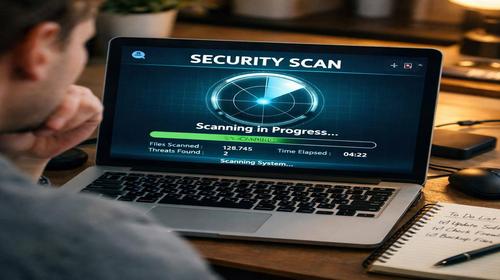
How to Check Your Computer for Spyware: Simple Spyware Detection for Windows
Short description: This guide is designed for users who suspect spyware on Windows, notice unusual computer activity, lost passwords, suspicious account logins, or strange system processes. Here you will find a simple inspection plan, common signs of infection, and recommended actions if spyware is detected.
Spyware rarely behaves like a traditional virus. Instead of immediately damaging files or crashing the system, it often works silently in the background, collecting passwords, browser history, cookies, messaging data, and sometimes providing cybercriminals with remote access to your computer.
Most users only notice indirect symptoms: the PC becomes slower, CPU usage increases, unusual network activity appears, browsers start opening websites on their own, or unfamiliar login attempts appear in online accounts.
Cybersecurity experts recommend investigating potential malware if your system suddenly slows down, consumes significantly more internet traffic, displays unexpected pop-ups, or redirects you to unfamiliar websites.
How Spyware Works and Why It Is Dangerous
Spyware is not a single malware family but a broad category of malicious software designed to monitor user activity and steal sensitive information. This category includes keyloggers, password stealers, browser cookie thieves, banking trojans, and other surveillance tools.
In most cases, infection begins after:
- opening a phishing email;
- running a suspicious ZIP archive;
- downloading an EXE file from an untrusted source;
- installing pirated software;
- visiting a fake banking, delivery, or support website.
Cybercriminals frequently disguise malicious files as legitimate documents:
- Invoice.pdf.exe
- Report.docx.exe
- readme.txt.exe
After execution, the malware may automatically add itself to startup locations, create hidden services, and begin collecting information in the background.
Common signs of spyware infection include:
- high CPU usage without a clear reason;
- increased RAM consumption;
- constant network activity while idle;
- unknown processes in Task Manager;
- new startup applications;
- suspicious Windows services;
- stolen browser sessions and passwords;
- logins from unfamiliar devices;
- unauthorized remote access to the computer.
Malicious browser extensions are another common threat. They can read website content, steal cookies, modify search results, display fake notifications, and redirect users to fraudulent banking or support websites.
The Fastest Way to Protect Yourself
If you suspect spyware, immediately disconnect the computer from the internet and avoid entering passwords on the affected device.
Then perform the following checks:
- open Windows Security;
- run a malware scan;
- review browser extensions;
- check startup applications;
- review recent logins to email, Telegram, banking, and cloud accounts.
A common mistake is deleting a suspicious file and assuming the problem has been solved. Modern spyware often consists of multiple components, including background services, browser extensions, scheduled tasks, and startup entries.
Step-by-Step Spyware Detection Guide
- Preparation.
Back up important files to an external drive, but avoid copying unknown EXE, ZIP, or SCR files. Review your email, Google, Microsoft, Telegram, and banking accounts from a separate trusted device. Install all available Windows security updates. - Check Running Processes.
Open Task Manager and look for processes consuming excessive CPU or RAM. Pay particular attention to applications with random names, unknown publishers, or files running from Temp, AppData, or ProgramData folders. - Inspect Startup Programs.
Open the Startup tab and disable unfamiliar entries. Investigate the file path and determine whether the program is legitimate. - Audit Your Browser.
Remove extensions you do not recognize. Review website notification permissions and revoke access from suspicious websites. - Review Telegram and Online Accounts.
Check active sessions, terminate unknown devices, and enable two-factor authentication wherever available. - Scan the System.
Run a full Microsoft Defender scan. If suspicious behavior continues, perform a Microsoft Defender Offline scan. Additional malware scanners may be used, but avoid installing multiple real-time antivirus products simultaneously. - Clean the System.
Review Downloads, temporary folders, and startup locations. Instead of immediately deleting suspicious files, quarantine them when possible. If a file returns after deletion, another malware component may be recreating it. - Check Network Security.
Change your Wi-Fi password, review connected devices on the router, and ensure WPA2 or WPA3 encryption is enabled. - Verify Results.
After restarting the computer, confirm that suspicious processes are gone, system load has returned to normal, and no unauthorized account logins continue to appear.
Useful Security Tips
- Review website notification permissions in addition to browser extensions.
- Use a password manager and unique passwords for every account.
- Enable two-factor authentication whenever possible.
- Regularly review connected devices in Google, Telegram, and social media accounts.
- Use secure DNS services and keep browsers updated.
Common User Mistakes
Opening EXE and ZIP files from email.
This remains one of the most common infection methods for spyware and password stealers.
Clicking fake login links.
Phishing websites often closely resemble legitimate banking and support portals.
Installing suspicious browser extensions.
Malicious extensions can steal cookies, monitor browsing activity, and manipulate web pages.
Using pirated software.
Cracks and activators frequently contain spyware and credential-stealing malware.
Sharing Telegram codes or running software requested by “support staff”.
Legitimate support teams never ask for authentication codes or require unknown software installations.
Frequently Asked Questions
How can I tell if my computer has spyware?
Common indicators include suspicious processes, unauthorized account logins, unusual system load, and continuous network activity.
Can Microsoft Defender detect spyware?
Yes. Microsoft Defender is a good starting point for identifying and removing many common spyware threats.
Why is my browser opening websites automatically?
The cause may be a malicious extension, adware, or a system-level malware infection.
Can a VPN remove spyware?
No. A VPN protects internet traffic but cannot remove malware already installed on a computer.
How do I check whether my Telegram account has been compromised?
Review active sessions, terminate unknown devices, change your password, and enable two-factor authentication.
Are ZIP files dangerous?
They can be, especially when they contain executable files or documents with misleading double extensions.
What is the fastest way to secure an account after a suspected compromise?
Review login history, sign out of all active sessions, change the password, and enable two-factor authentication.
Read Also
Bookmarks
If this article was helpful, add our
Windows Security and Computer Protection Blog
to your bookmarks.
Press Ctrl + D
One important thing to remember about spyware detection on Windows: if suspicious symptoms appear together—high CPU usage, increased RAM consumption, constant background traffic, and unauthorized account logins—it is unlikely to be a simple system glitch. In such cases, disconnect the computer from the internet, inspect the system, browser, startup entries, and account sessions before returning the device to normal use.