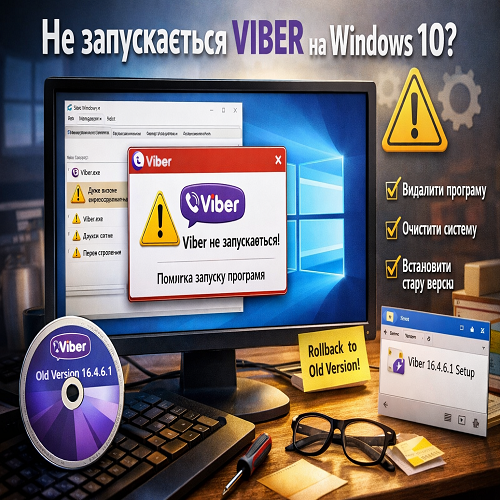
Viber Not Launching on Windows 10 — How to Fix the Error and Restore the Program
Short description: if Viber is not launching on Windows 10, this guide will help you find the cause of the error and quickly restore the program’s functionality.
When this problem occurs
- Viber does not start after a Windows update
- the process appears in Task Manager with an error
- very high energy consumption is detected
- corrupted program files or cache
- incompatibility of the latest Viber version with the system
Step-by-step instructions
- Step 1 — check running processes
If Viber is not launching on Windows 10, open Task Manager using Ctrl + Shift + Esc. Find the Viber process and check its status. In many cases, you may see a warning icon or extremely high energy usage. This indicates that the program is not functioning correctly. End the process manually. This is a basic step in Windows program optimization that helps remove stuck processes and prepares the system for further troubleshooting. - Step 2 — completely uninstall the program
Go to Windows Settings or Control Panel and uninstall Viber. After that, manually check the Program Files and AppData folders and remove any remaining files. Many users skip this step, which leads to repeated program errors in Windows. A clean removal prevents conflicts during reinstallation. - Step 3 — clean system files
After uninstalling, clean temporary files using the built-in cleanmgr tool. This improves Windows program optimization and reduces the chance of recurring issues. It is especially important if the program previously caused high CPU or memory usage. - Step 4 — install an older version of Viber
One of the most effective solutions is installing a stable older version of the program. For example, version 16.4.6.1 has shown stable performance in many cases :contentReference[oaicite:0]{index=0}. New versions may contain bugs or compatibility issues. Installing a proven version often resolves the issue quickly. - Step 5 — test the program
After installation, launch Viber and check if it works properly. If the program runs without errors and does not overload the system, the issue is resolved. To avoid future problems, consider disabling automatic updates.
Useful tips
- do not install new versions immediately after release
- regularly clean cache and temporary files
- manage startup programs in Task Manager
- use stable and tested versions of software
- monitor CPU and memory usage
Common program errors
A common issue is automatic updates without user control, which can introduce unstable versions. Users also often fail to remove leftover files after uninstalling, causing repeated conflicts. Another mistake is ignoring high system load indicators. To avoid these problems, regularly optimize Windows and installed programs, and always use reliable versions of software.
Frequently asked questions
Does this work on Windows 7, 10, or 11?
Yes, these methods work on most Windows versions, but they are especially effective on Windows 10.
Is it safe to change program settings?
Yes, if you follow the instructions carefully. Uninstalling and reinstalling programs is a standard troubleshooting method.
Will the program affect computer performance?
Yes, a malfunctioning program can significantly impact system performance. Proper optimization and installation can fix this issue.
Does this work on laptops?
Yes, this solution works for both desktop computers and laptops.
Conclusion
If Viber is not launching on Windows 10, the issue is usually caused by update errors or corrupted files. The most effective solution is a complete removal and installation of a stable version. Additionally, regular Windows program optimization and system cleaning will help prevent similar issues and ensure stable performance.