SMART Disk Check — How to Check HDD and SSD Health
Short description: Learn what SMART disk monitoring is, how to check HDD and SSD health in Windows, and which SMART values help detect storage problems before data loss happens.
The condition of a hard drive or SSD directly affects computer stability. If a storage device starts failing, it may cause Windows freezes, file corruption, system crashes, and complete data loss.
To monitor drive health, modern HDD and SSD devices include SMART technology. SMART helps detect early signs of disk failure and allows users to identify problems before the drive completely stops working.
What is SMART?
SMART (Self-Monitoring, Analysis and Reporting Technology) is a built-in self-diagnostic system used in modern storage devices.
Most HDD and SSD drives automatically monitor their condition during operation and store diagnostic information inside the drive firmware.
SMART tracks:
- Read errors.
- Bad sectors.
- Disk temperature.
- Power-on hours.
- Write errors.
- SSD memory condition.
- Storage wear level.
Why SMART disk checks are important
- To monitor HDD and SSD health.
- To detect bad sectors.
- To control disk temperature.
- To monitor SSD lifespan.
- To prevent data loss.
- To diagnose slow Windows performance.
When you should check SMART
- Your computer freezes.
- Windows becomes slow.
- The drive makes unusual noises.
- Files become corrupted.
- After sudden power loss.
- Your laptop overheats.
- You want to test a used drive before buying.
How to check SMART in Windows
SMART values can be viewed using specialized software:
- CrystalDiskInfo
- Victoria HDD
- HD Tune
- AIDA64
- Hard Disk Sentinel
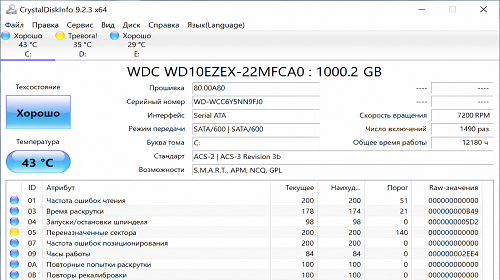
CrystalDiskInfo is one of the most popular tools for SMART monitoring.
SMART check using CrystalDiskInfo
- Download CrystalDiskInfo.
- Launch the software.
- Select the required drive.
- Review the disk health status.
The software may display:
- Good — drive health is normal.
- Caution — the drive has problems.
- Bad — the drive may fail soon.
Most important SMART values
Reallocated Sector Count
Shows the number of remapped sectors. If the value increases, the drive is starting to fail.
Current Pending Sector
Indicates unstable sectors that may soon become bad sectors.
Power-On Hours
Displays the total operating time of the storage device.
Temperature
Shows the drive temperature during operation.
Read Error Rate
Displays read errors detected by the storage device.
Normal HDD and SSD temperature
- HDD — 30–45°C
- SSD — 30–50°C
- NVMe SSD — up to 70°C
Constant overheating may reduce storage lifespan and stability.
What are bad sectors?
Bad sectors are damaged areas of an HDD or SSD that can no longer safely store information.
Common causes include:
- Physical HDD wear.
- Overheating.
- Power supply problems.
- Laptop drops or impacts.
- Drive aging.
SMART monitoring for SSD drives
SMART works not only with HDD drives but also with SSD storage devices.
For SSD drives it is especially important to monitor:
- Remaining lifespan.
- NAND memory condition.
- Write errors.
- Temperature.
Can SMART be trusted?
In most situations SMART successfully helps detect storage problems before complete drive failure occurs.
However, some drives may fail suddenly without showing critical SMART warnings.
Because of this, creating regular backups is always recommended even when SMART status shows Good.
What to do if SMART shows Caution
- Create a backup immediately.
- Scan the drive for bad sectors.
- Monitor temperature carefully.
- Prepare to replace the drive.
What to do if SMART shows Bad
- Save important files immediately.
- Avoid storing critical data on the drive.
- Replace the storage device.
- Reinstall Windows on a new drive.
Advantages of SMART monitoring
- Early problem detection.
- Temperature monitoring.
- SSD lifespan analysis.
- Free monitoring software available.
- Works with HDD and SSD drives.
Disadvantages of SMART
- Not every hardware failure can be predicted.
- SMART values require external software to view.
- Some parameters are difficult for beginners to understand.
Frequently asked questions
Is SMART monitoring free?
Yes, many free SMART monitoring programs are available.
What is the best SMART monitoring software?
CrystalDiskInfo is one of the most commonly used tools.
What does the Caution status mean?
The drive has problems or unstable sectors.
Can an SSD fail without SMART warnings?
Yes, some SSD drives may fail suddenly.
How often should I check SMART?
Checking disk health once a month is recommended.
Does SMART work on Windows 11?
Yes, modern SMART tools support Windows 10 and Windows 11.
Should I replace a drive with Bad status?
Yes, such drives may completely fail very soon.
Conclusion
SMART disk monitoring is one of the best ways to control HDD and SSD health in Windows. SMART helps users detect drive problems, identify bad sectors, and avoid losing important data before complete storage failure occurs.
Read also
Bookmarks
If this article was helpful, bookmark our Windows and software blog.
Press Ctrl + D